Get upto 60% Discount

Get upto 60% Discount
Unlimited Access:
$15.00 Original price was: $15.00.$4.99Current price is: $4.99.

Tired of Restrictions?
Go Unlimited!
Join Our Membership to Download 8400+ Plugins & Themes

Construction and contractor websites often fail for predictable reasons. The pages load, the photos look fine, but visitors cannot quickly answer basic questions like what you build, where you work, how to request a quote, and whether you are credible for a specific project type.
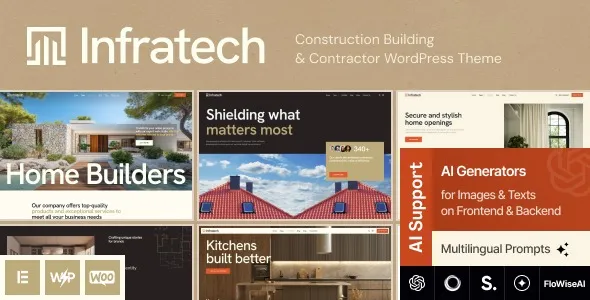
Download Infratech Construction Building & Contractor WordPress Theme which is built for that gap. It is a WordPress theme designed around service clarity, project presentation, and lead capture, with layouts that suit builders, renovation teams, civil contractors, and specialist trades.
If you are here because you want a clean setup path and a fast launch, this is where Infratech Construction Building & Contractor WordPress Theme download intent makes sense. You are not just downloading a design. You are downloading a site structure that reduces decision fatigue during setup.
The real value is speed to a credible, quote-ready site. Infratech typically gives you pre-built page patterns for services, project portfolios, team or company info, and contact funnels, so you spend less time inventing structure and more time tailoring proof.
For contractor businesses, “proof” is rarely a single testimonials widget. It is the combination of project galleries, scope descriptions, location coverage, certifications, and a frictionless way to request an estimate. A construction theme earns its keep when it makes those pieces easy to assemble and consistent across the site.
The common friction is not WordPress itself. It is the messy middle between installing a theme and having a site that feels real.
Typical pain points include mismatched typography, pages that do not share a consistent layout logic, and service pages that read like generic brochures. Another frequent issue is portfolio content. Teams upload images but forget to add context like project type, materials, timeline, or location, which weakens trust.
Infratech is useful when it nudges you toward repeatable content blocks. That repeatability matters because contractor sites usually grow by adding services, adding projects, and adding locations. A theme that supports that pattern reduces rework later.
Start by deciding what the visitor should do on every page. For most contractors it is “request a quote” or “call now.” Then build around that action.
Home: one clear headline, 3 to 6 services, 6 to 12 project highlights, and a short credibility strip (years, licenses, safety, warranty).
Services: separate pages per service. Each should include scope, process, typical timelines, and what affects pricing. This is where you reduce low-quality leads by setting expectations.
Projects: treat each project like a case study. Add constraints, what you solved, and photos that show before, during, after. Even short captions help.
About: keep it operational. Who leads jobs, how you communicate, what standards you follow, and where you work.
Contact / Quote: a short form that collects the right details. Avoid long forms that people abandon on mobile.
Use this checklist to keep the installation stable and avoid the common “white screen” or broken layout issues that come from missing requirements.
Update WordPress core and verify your PHP version meets modern theme requirements. Make sure you have enough memory allocated for page builder imports. A fresh install is easiest, but a staging site works well too.
After your Infratech – Construction Building & Contractor WordPress Theme download, unzip the package on your computer. Identify the installable theme .zip (sometimes themes include documentation, child theme, and demo files in separate folders).
In WordPress, go to Appearance > Themes > Add New > Upload Theme. Upload the installable .zip and activate it.
Most construction themes rely on a page builder and a few utility plugins. Install only what the theme recommends for demos and core functionality. Skip extras you do not need, especially if they add sliders, popups, or heavy animation.
If you import demo content, do it once, then wait. Do not refresh mid-import. After import, check menus, homepage assignment, and permalinks (Settings > Permalinks, then save).
Swap global items first: logo, colors, typography, header CTA, and footer details. Then replace service pages and project pages. Leave blog and news sections for later unless content marketing is part of your plan.
Test on mobile, check contact form delivery, and verify that clickable phone numbers work. Compress images for project galleries. Confirm that title tags and meta descriptions are not stuck on demo text.
You can build a contractor site using a generic multipurpose theme and a page builder. It works, but you usually spend time reinventing page patterns that construction buyers expect, like service layouts, portfolio grids, and quote prompts.
Infratech is most helpful when you want those patterns pre-shaped. You get a faster starting point and fewer design decisions. The trade-off is that you are working within the theme’s layout philosophy. If your brand needs a highly custom interaction design, you may still need developer time.
For many teams, the best middle ground is to use the theme’s structure, then customize typography, spacing, and content depth rather than rebuilding templates from zero.
Construction sites tend to be image-heavy. The fastest way to slow down Infratech is not the theme itself. It is uploading 4 to 8MB photos straight from a phone and using too many sliders.
Keep galleries lean. Use modern formats when possible, compress images, and limit motion effects. If you run multiple project grids on the homepage, consider showing fewer items and linking to the full portfolio page. This keeps the first load lighter while still giving visitors a clear path to proof.
Leaving service pages thin: One paragraph and a stock photo does not rank or convert. Add scope details, materials, and decision factors. People search for specifics like “foundation repair timeline” or “commercial fit-out process.”
Using the same CTA everywhere: “Contact us” is vague. Mix CTAs based on intent: “Request an estimate,” “Schedule a site visit,” “Ask about availability,” or “Get a callback.”
Portfolio without context: A grid of images is not a case study. Add short, structured details. Even 4 bullets per project can change perceived credibility.
Not setting location signals: If you work in specific cities or regions, add them naturally in headings, service pages, and the footer. Do not spam city lists. Use real coverage statements.
Yes, if you want a more “contractor brand” presentation with projects and service pages. If you only need a one-page brochure with a phone number, it may be more theme than you need.
You can, but expect a slower start. Demo imports are useful because they create the page templates and navigation structure. If you skip them, plan your pages first so you do not end up with inconsistent layouts.
Collect your logo, brand colors, service list, 6 to 12 project photos, and a short company bio. Also decide your primary CTA and what information you want in the quote form.
Replace typography, rewrite headings to match how customers speak, and add real project details. The fastest “de-demo” move is to build three strong service pages and three detailed project pages first, then expand.
It can, but you should plan your information architecture. Create location pages only when you have meaningful content per area (projects, coverage notes, contact details). For many businesses, a single coverage page plus structured service pages is cleaner.
This is usually a missing plugin, a menu not assigned to the header location, or a homepage not set. Check Appearance settings, plugin status, and Settings > Reading to confirm the correct front page.
If you are evaluating options because you need a contractor-focused layout quickly, Infratech – Construction Building & Contractor WordPress Theme download is typically the next step after you confirm it supports your page types: services, projects, and a quote funnel.
Once you complete your Infratech – Construction Building & Contractor WordPress Theme download, treat the first hour as setup hygiene. Install, import once, set global styles, then work page by page. That approach prevents the most common failure mode: a site that looks half demo and half custom.
For teams that publish projects regularly and want a consistent structure that scales, Infratech – Construction Building & Contractor WordPress Theme download is most useful when paired with disciplined content: clear service scope, real project context, and CTAs that match how customers actually request work.
For Installation or Technical Related Queries check FAQ Page
Our Website also have older version of the plugins and theme. So you can test your website with compatible plugins or Rollback plugins in case of any bug or compatibility issues.
UNZIP the file downloaded from our website, the zip file might contain other files like Template, Docs etc. So make sure you upload correct file.
To Install Plugins:
To Install Themes:
Sometimes theme/plugin might ask you for license, just ignore. Because we have already activated the product with out legal key, which we have purchased for you.
When a New version appears and is available on our website you’ll find it in My Account “Downloads section”.
For Destination Already Exists error:
Make sure to Delete the version of theme/plugin that you have on your website before you upload our premium version, it might cause a conflict during installation and activation.
Or WordPress will say “destination already exists” when trying to upgrade using a zip file and will fail to upgrade the theme or plugin.
If you faced “destination already exists” error installing this Plugin will solve the issue – Easy Theme and Plugin Upgrades.
Our business hours are Monday to Saturday from 10:00 am to 8:00 pm, any request made outside these hours will be answered until next business day. Support and Updates can take 24 to 48 hours. Support provided is for product installation. Please be aware of possible time zone differences when waiting for our reply.
If you have any Queries, Feel Free to Contact Us:
Abuse Warning:
For more information please read FAQs & Terms of Use.