Get upto 60% Discount

Get upto 60% Discount
Unlimited Access:
$15.00 Original price was: $15.00.$4.99Current price is: $4.99.
Available Download Files

Tired of Restrictions?
Go Unlimited!
Join Our Membership to Download 8400+ Plugins & Themes

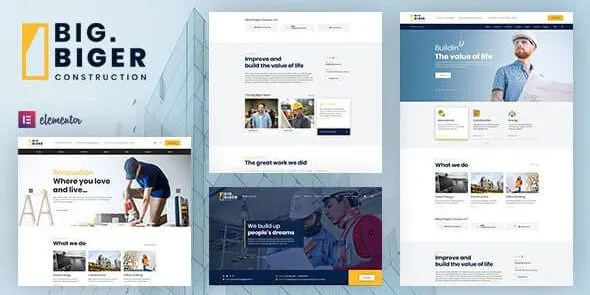
If you are searching for a Bigger Construction WordPress Theme download, the usual goal is not just “a new look.” It is a faster path to a credible construction or contractor site that feels structured from day one. Most people downloading this theme want a homepage that communicates trust quickly, service pages that do not need heavy custom design work, and a layout that supports calls and quote requests without wrestling WordPress into shape.
Bigger Construction WordPress Theme is typically chosen when a business site needs to look established, even if the content team is small or the site is being built under time pressure. The value is in reducing the number of decisions you have to make early on. Instead of assembling a design system from scratch, you start with a construction-oriented frame that already anticipates the pages visitors expect.
In practice, that means you spend less time debating layout patterns and more time filling in the specifics: service areas, project photos, certifications, and contact routes. If your current blocker is “I can install WordPress, but the site still looks unfinished,” this is the kind of theme download that removes that friction.
The core outcome users expect after they download and activate Bigger – Construction WordPress Theme is momentum. A blank or general-purpose theme can be flexible, but flexibility is expensive when you need a construction site that looks intentional. You end up making dozens of small decisions that do not feel hard individually, but add up to days of delay.
Bigger – Construction WordPress Theme is aimed at a narrower intent: present services, show proof of work, and convert visitors into calls or quote requests. That focus matters because it shapes how the theme “nudges” you during setup. You are not just picking colors and fonts. You are organizing the site around the pages real prospects look for.
One practical benefit that often shows up after installation is content clarity. When the structure is already aligned with contractor-style browsing, it becomes easier to spot what is missing. For example, many construction sites forget to show service coverage areas or to separate commercial vs residential offerings. A purpose-built theme makes those gaps obvious earlier, which saves rework later.
A safe Bigger Construction WordPress Theme download starts with treating the theme like any other production dependency. Download the theme package, keep it unchanged, and upload it through your WordPress dashboard so WordPress can validate and install it normally.
After your Bigger – Construction WordPress Theme download completes, go to Appearance > Themes > Add New > Upload Theme, choose the ZIP file, then install and activate it. WordPress will switch the active theme immediately, so it is best to do this on a staging site or during a low-traffic window if you are replacing an existing theme.
Right after activation, expect two things. First, your site will adopt the theme’s default styling and layout rules, so existing pages may look different even if you do not change content. Second, you will likely see theme prompts or recommended setup steps in the admin area, depending on how the theme is packaged.
Check your homepage and menus first. Many users install a theme and assume the homepage will “just appear.” In WordPress, your homepage can be set to a static page or your latest posts. Confirm it under Settings > Reading, then assign menus under Appearance > Menus.
Review widgets and footer areas. Construction themes often rely on footer contact blocks, business hours, and service links. After you download and install Bigger Construction WordPress Theme, open Appearance > Widgets (or the Site Editor, depending on your setup) and confirm those areas are not empty or duplicated.
If you are performing a download Bigger Construction WordPress Theme workflow for a client site, document your pre-install state (screenshots and plugin list). It makes it easier to isolate changes if something looks off after activation.
This theme tends to fit best when your site is meant to be scanned quickly: services, project galleries, a short about section, and a clear contact path. If your goal is lead generation for a local contractor, builder, renovation team, or construction company, the theme’s biggest advantage is that it keeps you inside familiar patterns that visitors already understand.
It can feel limiting if you are trying to build something that is not really a construction brochure site. For example, if you need a content-heavy publication, a complex membership area, or a highly interactive quoting system, you may find yourself leaning on extra plugins and custom templates. At that point, the theme becomes less of a shortcut and more of a starting skin.
A common post-download realization is that the theme is not the main problem. Some teams download a construction theme when what they actually need is better content: clearer service descriptions, better photos, and proof elements like reviews and certifications. Bigger Construction WordPress Theme can support those assets, but it cannot replace them. If your media library is thin or your project photos are inconsistent, plan to address that early so the design does not highlight the gaps.
Another practical edge case is migrating from a page-builder-heavy setup. If your existing pages were built with a builder and tightly styled, switching themes can expose spacing and typography differences. It is not “broken,” but it may require a pass on key pages after activation to restore the intended hierarchy.
It is a WordPress theme. You install it from Appearance > Themes > Add New > Upload Theme using the ZIP file, then activate it. If you are searching for a Bigger – Construction WordPress Theme plugin download, the installation steps are similar to a plugin upload, but the correct location in the dashboard is the Themes area.
Confirm your homepage setting, menu assignments, and footer/widget areas. Then review your top 3 to 5 pages on mobile. Most “something is wrong” reports after a theme switch are actually missing menus, the wrong homepage configuration, or empty footer blocks.
Your posts and pages remain, but the presentation can change. Shortcodes, builder layouts, and custom blocks may look different depending on how they were styled by your previous theme. Plan to review key conversion pages (Home, Services, Contact) after you download and install Bigger – Construction WordPress Theme.
Not always. Many users can publish a clean site using the WordPress editor plus a theme’s built-in layout options. A builder can help if you need highly custom landing pages, but it also adds another layer to maintain. If your priority is a stable, install-ready setup, start without extra tooling and add it only if you hit a real limitation.
The theme provides structure, but it cannot invent content. Construction sites rely heavily on project photos, service details, and trust signals. If you activate the theme on a fresh WordPress install, it may look sparse until you add pages, assign menus, and upload real imagery.
Usually once is enough. If the upload fails, re-check the ZIP file and your server limits (upload size and memory). For a clean reset, remove the theme from Appearance > Themes, then complete a fresh Bigger Construction Theme download and upload again, keeping the file unmodified.
If you are evaluating whether this is the right choice, treat it like a production component: install it, verify navigation and homepage behavior, then decide based on how quickly you can publish a credible services-first site. That is what Bigger Construction Theme is designed to accelerate, and it is the main reason a Bigger Construction WordPress Theme download makes sense for many contractor builds.
For Installation or Technical Related Queries check FAQ Page
Our Website also have older version of the plugins and theme. So you can test your website with compatible plugins or Rollback plugins in case of any bug or compatibility issues.
UNZIP the file downloaded from our website, the zip file might contain other files like Template, Docs etc. So make sure you upload correct file.
To Install Plugins:
To Install Themes:
Sometimes theme/plugin might ask you for license, just ignore. Because we have already activated the product with out legal key, which we have purchased for you.
When a New version appears and is available on our website you’ll find it in My Account “Downloads section”.
For Destination Already Exists error:
Make sure to Delete the version of theme/plugin that you have on your website before you upload our premium version, it might cause a conflict during installation and activation.
Or WordPress will say “destination already exists” when trying to upgrade using a zip file and will fail to upgrade the theme or plugin.
If you faced “destination already exists” error installing this Plugin will solve the issue – Easy Theme and Plugin Upgrades.
Our business hours are Monday to Saturday from 10:00 am to 8:00 pm, any request made outside these hours will be answered until next business day. Support and Updates can take 24 to 48 hours. Support provided is for product installation. Please be aware of possible time zone differences when waiting for our reply.
If you have any Queries, Feel Free to Contact Us:
Abuse Warning:
For more information please read FAQs & Terms of Use.