Get upto 60% Discount

Get upto 60% Discount
Unlimited Access:
$10.00 Original price was: $10.00.$2.99Current price is: $2.99.
Available Download Files

Tired of Restrictions?
Go Unlimited!
Join Our Membership to Download 8400+ Plugins & Themes

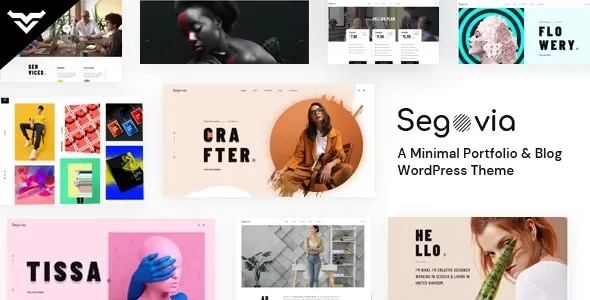
Segovia – A Minimal Portfolio And Blog WordPress Theme is built for a very specific job. It gives you a clean, editorial front end that stays out of the way while you publish writing and showcase projects. The value is not in dozens of demos. It is in predictable typography, a restrained layout system, and a portfolio presentation that does not fight your content.
When we installed Segovia on a client site that had grown messy from page builder experiments, the immediate win was removing layout decisions from every page. Posts looked like they belonged to the same publication again, and the portfolio stopped feeling like an afterthought bolted onto a blog.
If you are searching for “Segovia – A Minimal Portfolio And Blog WordPress Theme download”, the important detail is that you are not just downloading a skin. You are choosing an opinionated structure for navigation, archives, and single pages. That opinion is usually what makes minimal themes succeed or fail on real sites.
Minimal themes tend to fail in two places. First, they assume your content is already well structured. Second, they can fall apart when you add typical business requirements like category hubs, email capture blocks, or mixed media posts.
Segovia generally holds up well when you keep your content model simple. Standard posts, a few categories, a portfolio with consistent featured images, and a straightforward menu. The moment you introduce irregular image ratios, long unbroken headings, or inconsistent excerpts, you will see the “minimal” design amplify those inconsistencies rather than hide them.
One friction point I have seen is editors overusing custom HTML blocks inside posts to force spacing. It works for one article and then creates a maintenance problem. With Segovia, it is better to solve spacing at the theme styling level, or by standardizing block patterns you reuse across posts.
The theme makes the most sense when you treat WordPress like a publishing tool first. Write in the block editor, keep a consistent featured image approach, and let archives do the heavy lifting for discovery.
A workflow that has worked well for us:
Define 3–6 categories that map to how people browse, not how your team thinks internally. Use tags sparingly, mainly for cross-cutting topics.
For portfolio items, decide whether the “project” is a case study (long-form content) or a gallery (image-first). Mixing both on the same template can look inconsistent. If you need both, create two clear content patterns and stick to them.
Use excerpts intentionally. On minimal themes, excerpts are not decoration. They are the primary “preview” text that controls how dense or airy your archive pages feel.
Segovia is not trying to be a multipurpose theme, and that is a strength. It also means you should not expect it to replace a landing-page-focused setup if your site is mostly paid traffic and conversion experiments.
If your homepage needs multiple above-the-fold modules, rotating promotions, and heavy personalization, you will either fight the theme or end up adding a page builder. At that point, the reason you chose a minimal theme starts to disappear.
Another trade-off is that “minimal” can tempt teams to skip content design. You still need a content system: consistent image dimensions, headline length discipline, and a plan for how portfolio entries link to deeper detail. Segovia will not solve that for you. It will simply make the gaps obvious.
With a builder-first theme, you often get quick control at the expense of long-term consistency. Editors can create five different versions of the same layout without realizing it. That hurts crawl efficiency and indexing because internal linking and page structure become unpredictable across templates.
Segovia tends to produce more uniform markup and page structure. That helps Google understand your site sections, especially archives and taxonomy pages, because the layout patterns repeat in a meaningful way rather than randomly.
On the other hand, builder-based themes can be easier when stakeholders demand constant layout changes. If your team expects weekly redesign tweaks, Segovia may feel “too strict” unless you are comfortable adjusting CSS and child theme overrides in a controlled way.
If you are planning a Segovia – A Minimal Portfolio And Blog WordPress Theme download and install, treat it like a theme migration, not a cosmetic swap. Minimal themes expose content issues, so test before you flip it live.
Clone your site to staging. If you cannot, at least take a full backup and confirm you can restore both files and database.
In WordPress, go to Appearance > Themes > Add New > Upload Theme. Upload the zip and install. Do not activate yet if you are doing this on production.
Review the homepage, a category archive, a single post, and a portfolio item. Look for image cropping issues, missing featured images, and overly long titles wrapping awkwardly.
Minimal themes often use different widget locations or none at all. Confirm your primary navigation, footer links, and any sidebar elements are still in place.
Open a few posts in the editor and verify headings, quotes, lists, and galleries render cleanly on the front end. If you see odd spacing, avoid patching each post. Fix it with theme settings or a child theme.
Test a few pages with and without being logged in. Check for oversized images and confirm your caching plugin is still serving pages correctly after the theme change.
The most common issue I see with Segovia-style themes is inconsistent media. If one portfolio item uses a tall featured image and the next uses a wide banner, your grid will look uneven. Decide on a standard aspect ratio and enforce it.
Another mistake is using headings as styling tools. For example, placing an H2 just to make text bigger. That creates messy document outlines and can dilute topical relevance across long posts. Keep headings semantic and handle size with styles.
Finally, do not ignore archive pages. People obsess over the homepage and forget category and tag archives. On minimal themes, archives are often where users actually browse. Make sure category descriptions are useful and not empty placeholders.
Yes, that is one of its best fits. The blog can carry the site, while the portfolio adds credibility without needing a complex project database.
It can, but you need consistency. Use a repeatable block pattern for image captions and quotes, and keep image sizes optimized. Minimal layouts make spacing and alignment issues more noticeable.
Usually no. If your goal is a clean portfolio and editorial blog, the block editor is typically enough. Add a builder only if you truly need custom landing pages that diverge from the site’s standard structure.
Check menus, featured image behavior, post typography, and archive layouts. Those are the areas where theme assumptions show up fastest.
You often can, but expect cleanup. Shortcodes, builder blocks, and custom spacing hacks from the old theme may render poorly. We usually audit a handful of representative posts first, then decide whether to refactor globally or selectively.
It depends. If your services pages are mostly narrative and case-study-driven, Segovia can work. If you need complex page sections, pricing tables, and multiple conversion modules per page, a more structured marketing theme may be a better fit.
For Installation or Technical Related Queries check FAQ Page
Our Website also have older version of the plugins and theme. So you can test your website with compatible plugins or Rollback plugins in case of any bug or compatibility issues.
UNZIP the file downloaded from our website, the zip file might contain other files like Template, Docs etc. So make sure you upload correct file.
To Install Plugins:
To Install Themes:
Sometimes theme/plugin might ask you for license, just ignore. Because we have already activated the product with out legal key, which we have purchased for you.
When a New version appears and is available on our website you’ll find it in My Account “Downloads section”.
For Destination Already Exists error:
Make sure to Delete the version of theme/plugin that you have on your website before you upload our premium version, it might cause a conflict during installation and activation.
Or WordPress will say “destination already exists” when trying to upgrade using a zip file and will fail to upgrade the theme or plugin.
If you faced “destination already exists” error installing this Plugin will solve the issue – Easy Theme and Plugin Upgrades.
Our business hours are Monday to Saturday from 10:00 am to 8:00 pm, any request made outside these hours will be answered until next business day. Support and Updates can take 24 to 48 hours. Support provided is for product installation. Please be aware of possible time zone differences when waiting for our reply.
If you have any Queries, Feel Free to Contact Us:
Abuse Warning:
For more information please read FAQs & Terms of Use.