Get upto 60% Discount

Get upto 60% Discount
Unlimited Access:
$3.59 Original price was: $3.59.$2.99Current price is: $2.99.

Tired of Restrictions?
Go Unlimited!
Join Our Membership to Download 8400+ Plugins & Themes

Most WordPress sites that need a map end up with one of two compromises. Either you embed a basic Google Map and accept that it is not really part of your content, or you build a custom SVG experience that looks great but takes too long to maintain.
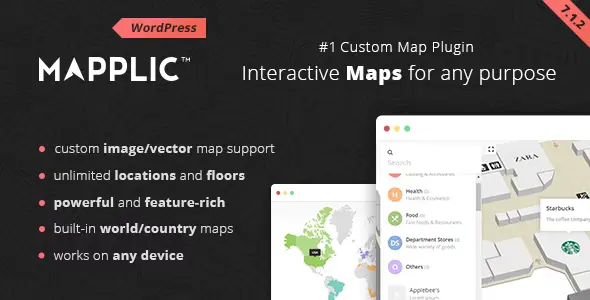
Mapplic Custom Interactive Map WordPress Plugin sits in the middle. It lets you publish interactive maps that behave like content. Locations can be clicked, filtered, labeled, and linked to pages, products, or external URLs.
If your goal is to ship a map users actually engage with, the practical starting point is a clean install and a reliable source for the files. This page is written to support download intent and setup clarity, including where people typically get stuck. You will also see “Mapplic Custom Interactive Map WordPress Plugin download” referenced in context because that is what most buyers search when they are ready to install.
The core value is control. You are not embedding a third-party map and hoping it matches your UX. You are publishing an interactive layer you can style, structure, and connect to your WordPress content.
That matters for use cases like venue maps, store locators with custom regions, campus directories, museum floor plans, travel maps with curated points, or any “choose a location” interface where the map is the navigation.
With Mapplic Custom Interactive Map WordPress Plugin, a location can be more than a pin. It can open a tooltip or detail panel, show an image, link to a page, or trigger a user flow. When implemented well, the map becomes a content index users explore instead of a decoration they ignore.
The common failure mode is treating an interactive map like a single widget you “drop in” and forget. In reality, it is a mini information architecture project.
Teams often underestimate the time needed to prepare clean map assets, decide what each location should do, and keep labels consistent. Another frequent issue is mixing too many interaction patterns at once. If every click opens a different style of panel or link behavior, users stop trusting the interface.
Mapplic works best when you define a small set of location types (for example: “building,” “department,” “store,” “point of interest”) and keep the behavior consistent across the map.
Update WordPress core and confirm you can access wp-admin with an admin account. If you are installing on a production site, create a full backup first. Interactive map plugins often involve assets and configuration that you will not want to rebuild from scratch.
When you search for Mapplic Custom Interactive Map WordPress Plugin download, make sure the package you obtain is the actual installable plugin ZIP. A common mistake is downloading a bundle that contains documentation and additional folders, then uploading the wrong ZIP.
In WordPress, go to Plugins → Add New → Upload Plugin. Select the plugin ZIP and click Install Now, then Activate. If WordPress reports “missing a style.css” or “not a valid plugin,” you likely uploaded the wrong ZIP from the package.
Before building the full project, create a minimal map with a single location. Confirm the click action works and the map renders correctly on the front end. This one-minute test prevents you from investing hours into a configuration that fails due to theme conflicts or caching.
If you use the block editor, add it using the plugin’s provided block or shortcode method. If you use a page builder, place the shortcode in a dedicated HTML or shortcode element. Avoid placing it inside accordion tabs or hidden containers until you confirm it renders correctly, since some scripts do not initialize when loaded invisibly.
If you run a caching or minification plugin, exclude the map page from aggressive script deferral until you confirm everything works. Many “broken map” reports come from deferred scripts or combined files that change load order.
A strong workflow is to treat locations like a content list first, then map them. Start by writing the location titles, short descriptions, and target links in a spreadsheet. This makes naming consistent and prevents duplicate or near-duplicate labels that confuse users.
Next, decide what the click should do. For example, for a real estate site, clicking a region might filter properties. For a university campus, clicking a building might open a detail panel with departments and hours. For a mall directory, clicking a store might link to a tenant page with promotions.
When the map grows beyond a few dozen locations, taxonomy-like organization becomes important. Users need search or filtering patterns that reduce scrolling and random clicking. The plugin is most effective when the map is paired with a structured location list and predictable categories.
If you are evaluating whether to proceed, it helps to install a test copy from a Mapplic Custom Interactive Map WordPress Plugin download and build a small prototype map with 10 locations. You will quickly learn whether your content model is ready.
A standard map embed is excellent for “here is our address.” It is less effective for “choose one of these 80 places.” Embeds also push users into a third-party UI that does not match your site’s navigation.
Custom-coded SVG maps can be perfect, but they are expensive to maintain. Every new location or label change becomes a development task, and non-technical editors cannot safely update the map.
Mapplic Custom Interactive Map WordPress Plugin sits in the practical middle ground. You can keep the map experience on-brand and interactive without turning every update into a code change. If you are searching for Mapplic Custom Interactive Map WordPress Plugin download because you want to replace a brittle custom map, the key is to validate that your map assets are clean and your location data is organized.
If you are using an SVG, ensure it has sensible IDs or structure for clickable regions. If you are using a flat image with pins, make sure you have the correct dimensions and that responsive scaling does not shift click targets unexpectedly.
Tooltips are for quick decisions. If you need long descriptions, use a panel or link to a full page. A good rule is: a user should understand what happens next in one glance.
On touch screens, hover does not exist. Test tap targets, zoom behavior, and whether your info panels are readable without blocking the map. Many teams only discover usability issues after publishing.
Minifiers and “delay JavaScript” features can break initialization. If the map loads blank or unclickable, temporarily disable script optimization on that page and reintroduce settings one by one.
This plugin is not a replacement for a full GIS platform. If you need live traffic layers, turn-by-turn routing, or heavy geospatial analysis, you will outgrow an interactive map plugin quickly.
Also, the quality of your result depends heavily on your assets. A poorly drawn SVG or inconsistent location naming will still feel messy, even if the plugin works perfectly.
Finally, interactive maps are content-heavy. If you plan to maintain hundreds of locations, budget time for editorial consistency and periodic cleanup. A fast Mapplic Custom Interactive Map WordPress Plugin download and install does not eliminate the need for a content model.
Yes. A common pattern is to connect a location to a page that contains richer content, galleries, or product listings. This keeps the map interaction lightweight while still driving users into deeper site paths.
In most builds, yes. The reliable approach is to embed the map using the plugin’s shortcode or block-equivalent method. If a builder loads content inside tabs or popups, test initialization carefully since some scripts need the container to be visible on load.
Use consistent naming, categories, and a predictable click behavior. Build a location list first, then map it. For large sets, prioritize search or filtering so users do not have to hunt visually.
Front-end issues are often caused by caching, script deferral, or theme-level JavaScript conflicts. Test with optimization features disabled on that page, then re-enable settings gradually.
Both approaches can work. SVG regions are best when you need clickable areas like countries, buildings, or zones. Image-plus-pins is often simpler for floor plans or travel maps where points are enough.
Test one map with one location on desktop and mobile. Confirm click behavior, panel readability, and that caching does not break rendering. This small test catches most issues early.
If your map is part of the user journey, such as selecting a location, exploring a venue, or browsing points of interest, an interactive map plugin is usually worth it. That is when a Mapplic Custom Interactive Map WordPress Plugin download turns into real UX value.
If you only need to show a single address or a basic “find us” embed, keep it simple. A lightweight map embed is easier to maintain and does not add an additional interface for users to learn.
For teams ready to build a map that behaves like structured content, Mapplic Custom Interactive Map WordPress Plugin download and a small prototype is the most practical next step.
For Installation or Technical Related Queries check FAQ Page
Our Website also have older version of the plugins and theme. So you can test your website with compatible plugins or Rollback plugins in case of any bug or compatibility issues.
UNZIP the file downloaded from our website, the zip file might contain other files like Template, Docs etc. So make sure you upload correct file.
To Install Plugins:
To Install Themes:
Sometimes theme/plugin might ask you for license, just ignore. Because we have already activated the product with out legal key, which we have purchased for you.
When a New version appears and is available on our website you’ll find it in My Account “Downloads section”.
For Destination Already Exists error:
Make sure to Delete the version of theme/plugin that you have on your website before you upload our premium version, it might cause a conflict during installation and activation.
Or WordPress will say “destination already exists” when trying to upgrade using a zip file and will fail to upgrade the theme or plugin.
If you faced “destination already exists” error installing this Plugin will solve the issue – Easy Theme and Plugin Upgrades.
Our business hours are Monday to Saturday from 10:00 am to 8:00 pm, any request made outside these hours will be answered until next business day. Support and Updates can take 24 to 48 hours. Support provided is for product installation. Please be aware of possible time zone differences when waiting for our reply.
If you have any Queries, Feel Free to Contact Us:
Abuse Warning:
For more information please read FAQs & Terms of Use.