Get upto 60% Discount

Get upto 60% Discount

Unlimited Access:
$10.00 Original price was: $10.00.$2.99Current price is: $2.99.
Available Download Files

Tired of Restrictions?
Go Unlimited!
Join Our Membership to Download 8400+ Plugins & Themes

Timelines show up in more places than “company history” pages. Product roadmaps, case studies, project milestones, event recaps, and even documentation changelogs all benefit from a chronological structure that readers can scan quickly.
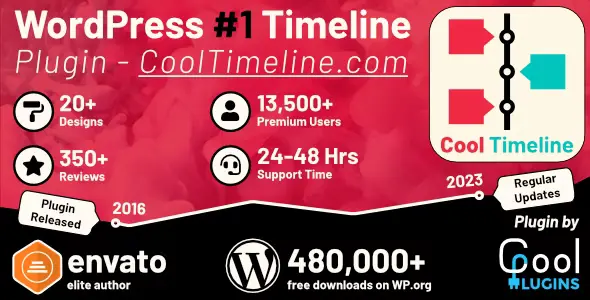
The problem is that WordPress does not treat timelines as a first-class content format. Most sites end up faking it with columns, repeated blocks, or a long page of headings that becomes hard to maintain. Cool Timeline Pro Timeline Plugin is built for that gap: it turns a set of dated entries into a consistent, navigable timeline layout without forcing you to hand-design each row.
If you are still evaluating options and reading about how the plugin behaves in real builds, it is common to look up a Cool Timeline Pro Timeline Plugin download so you can test it in a staging site before committing to a full redesign.
The core value is not “a pretty timeline.” It is the ability to manage chronological content like content. You add or update entries, and the timeline presentation stays coherent across pages.
In practice, Cool Timeline Pro Timeline Plugin reduces two kinds of work that typically slow teams down. First, it removes the repeated layout decisions that happen when authors build timelines manually with blocks. Second, it creates a predictable structure for readers, which matters when you have more than a handful of milestones.
This is especially useful when multiple people publish updates. A timeline built from standardized entries keeps formatting consistent even when authors have different editing habits.
It shines when you need a timeline that is updated over time, not a one-off page. Examples include annual reports, patient journey timelines, nonprofit impact stories, release histories, and conference schedules that evolve.
It is also a good fit when you need the same timeline format reused in multiple places, such as a full history page plus smaller embedded timelines on related landing pages.
Most complaints about timeline plugins are not about the timeline itself. They come from how the site’s theme, editor setup, and content model interact with the plugin’s output.
A frequent mistake is treating each milestone like a full blog post. When every entry contains multiple images, long paragraphs, and embedded blocks, the timeline becomes slow to scan and visually noisy.
A better pattern is to keep each entry to a tight summary, then link to a deeper page when needed. That approach keeps the timeline readable and reduces layout surprises on mobile.
Timelines live and die on ordering. If entries use mixed date formats, missing dates, or inconsistent time zones, you can end up with items that appear in unexpected positions.
Before importing or bulk-creating milestones, decide whether you are ordering by publish date, a custom date field, or an event date. Then stick to it across the entire timeline.
On heavily customized themes, global styles for lists, headings, or images can leak into timeline elements. The timeline still works, but spacing and typography can look “off.”
The practical fix is to test the timeline on the exact template you plan to use, not just in a blank page. If you see collisions, add small, targeted CSS overrides rather than broad resets that could affect other components.
For a short, static timeline, WordPress blocks can be enough. A simple stack of headings with dates, or a two-column layout, can look acceptable when you have five to eight milestones and you rarely edit them.
Cool Timeline Pro Timeline Plugin becomes more compelling when any of the following are true:
You expect to add entries regularly, you need consistent styling across multiple pages, or you want the timeline to stay readable as it grows. In those cases, a plugin-based timeline behaves more like a content system than a handcrafted design.
Another deciding factor is editorial workflow. Manual block timelines tend to drift over time as different editors add new sections with slightly different spacing and formatting. A structured timeline reduces that drift.
For most WordPress sites, the safest path is to obtain Cool Timeline Pro Timeline Plugin from a reputable source where updates are delivered reliably and files are not modified. Many site owners first install it on a staging site so they can validate styling, shortcodes or blocks, and compatibility with their theme and caching setup.
If you are comparing versions or troubleshooting a build, you may come across a Cool Timeline Pro Timeline Plugin download during research. Treat that as a prompt to verify you are using an authentic package and that you can receive updates, since timeline output often depends on front-end scripts and styles that change over time.
Installation follows the standard WordPress plugin workflow. Upload the plugin ZIP in the admin area, activate it, and then create a small test timeline with three to five entries. Validate the output on mobile and desktop, and check it on the page template you intend to use. If your site uses aggressive caching or optimization, clear caches after activation so styles and scripts load correctly.
After activation, spend a few minutes deciding how you will maintain timeline entries. If your site has multiple editors, document a simple rule set such as “one featured image,” “two-sentence summary,” and “one link for details.” That small step prevents the timeline from becoming inconsistent six months later.
Yes. It is often more useful for ongoing narratives like product releases, project milestones, event series recaps, or case study progressions. Any content that benefits from chronological scanning is a good candidate.
It can, depending on how heavy each entry is. Large images, embeds, and long content blocks increase page weight. Keeping entries concise and optimizing images usually has a bigger impact than the number of milestones alone.
Themes apply global typography and spacing rules that can affect plugin output. If headings, lists, or images have strong global styles, the timeline may inherit them. Testing on the final template and adding small CSS tweaks is typically enough to align the design.
Not necessarily. Many users run it within standard WordPress editing workflows. A page builder can help with surrounding layout, but the timeline itself is most reliable when you keep the structure consistent and avoid excessive nested design elements.
Confirm the file is the official, unmodified plugin package and that you will receive updates. Also verify it matches your WordPress and PHP versions in a staging site first, especially if your site uses minification or script delay settings that can affect front-end timelines.
For Installation or Technical Related Queries check FAQ Page
Our Website also have older version of the plugins and theme. So you can test your website with compatible plugins or Rollback plugins in case of any bug or compatibility issues.
UNZIP the file downloaded from our website, the zip file might contain other files like Template, Docs etc. So make sure you upload correct file.
To Install Plugins:
To Install Themes:
Sometimes theme/plugin might ask you for license, just ignore. Because we have already activated the product with out legal key, which we have purchased for you.
When a New version appears and is available on our website you’ll find it in My Account “Downloads section”.
For Destination Already Exists error:
Make sure to Delete the version of theme/plugin that you have on your website before you upload our premium version, it might cause a conflict during installation and activation.
Or WordPress will say “destination already exists” when trying to upgrade using a zip file and will fail to upgrade the theme or plugin.
If you faced “destination already exists” error installing this Plugin will solve the issue – Easy Theme and Plugin Upgrades.
Our business hours are Monday to Saturday from 10:00 am to 8:00 pm, any request made outside these hours will be answered until next business day. Support and Updates can take 24 to 48 hours. Support provided is for product installation. Please be aware of possible time zone differences when waiting for our reply.
If you have any Queries, Feel Free to Contact Us:
Abuse Warning:
For more information please read FAQs & Terms of Use.