Get upto 60% Discount

Get upto 60% Discount
Unlimited Access:
$10.00 Original price was: $10.00.$2.99Current price is: $2.99.

Tired of Restrictions?
Go Unlimited!
Join Our Membership to Download 8400+ Plugins & Themes

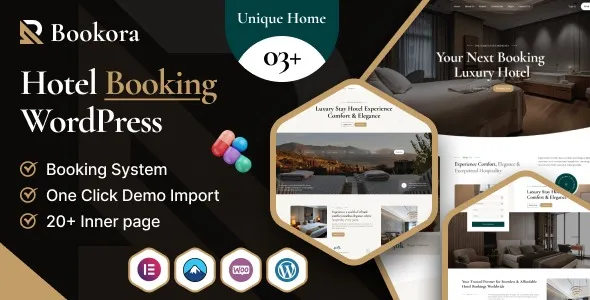
Most hotel and accommodation sites look fine until you try to make a reservation. Guests hit dead ends like unclear availability, confusing date selection, missing rate details, or a checkout that feels like a contact form. Bookora Hotel Booking WordPress Theme is built around that friction. It focuses on presenting rooms, availability, and booking steps in a way that matches how people actually choose and reserve accommodation.
If you are here with download intent, you are not alone. Many users search for Bookora Hotel Booking WordPress Theme download because they want a theme that already understands rooms, seasons, and booking expectations, without weeks of piecing together separate plugins.
Bookora is designed to turn WordPress into a hotel-ready site where rooms can be listed with structured details, availability can be presented clearly, and guests can move from browsing to booking without guessing what happens next.
The practical value is not “a pretty template.” It is the reduction of manual work and customer support load. When room types, occupancy, amenities, and policies are presented consistently, you get fewer pre-booking emails and fewer abandoned inquiries. The theme’s layouts and booking-oriented components help you communicate the essentials before guests need to ask.
A common pattern is starting with a general business theme and then trying to bolt on booking features. That approach often creates mismatched styling, inconsistent forms, and duplicated data entry. Room pages might look like blog posts. Availability might be a separate page that does not match the room detail layout.
Bookora is typically chosen to avoid that stitching work. Instead of forcing WordPress to behave like a booking engine through custom fields and multiple add-ons, it provides a hotel-centric structure from day one. That structure is what makes it easier to keep the site coherent when you add more rooms, more images, and more rate rules.
With WordPress defaults, you can publish room pages and add a contact form. It works for very small properties, but it breaks down when guests expect real availability and clear pricing logic. You also end up answering the same questions repeatedly because the site cannot communicate constraints like minimum stays, check-in times, or occupancy rules in a consistent place.
Generic multipurpose themes can be made to look like a hotel site, but they often treat rooms like portfolio items. You spend time adjusting templates, then spend more time making booking elements match the design. Bookora’s advantage is that the “room-first” presentation is not an afterthought, so the site feels like a booking experience rather than a brochure.
If you are planning a Bookora Hotel Booking WordPress Theme download, treat it like any production theme deployment. Most issues come from skipping backups or importing demo content into a live site.
Update WordPress core and ensure your PHP and memory limits are suitable for modern themes. If you are unsure, test on a staging site first. Staging prevents accidental overwrites of menus, widgets, and homepage settings.
After your Bookora Hotel Booking WordPress Theme download, confirm you have the installable ZIP for WordPress. Some packages include documentation and child theme files alongside the main theme ZIP. Only the theme ZIP should be uploaded in Appearance.
Go to Appearance > Themes > Add New > Upload Theme. Upload the ZIP, install, and activate. If WordPress reports a missing stylesheet, you likely uploaded the full package instead of the installable theme ZIP.
Many booking-oriented themes rely on companion plugins for page building, sliders, or booking components. Install only what the theme recommends. Avoid adding extra “optimization” plugins until the site is stable.
Demo import is useful, but it can also flood a site with placeholder pages and media. Import on staging first. Then replace room content and images in a controlled way so you do not leave orphan pages indexed later.
Set your homepage, assign menus, and confirm room listing and room detail templates are displaying correctly. Test the full booking path on mobile. Most booking drop-offs happen on small screens.
Before going live, check page titles, room schema if available, and make sure search engines are not blocked. If you moved from staging, confirm your site URLs and permalinks are correct.
One mistake is treating room pages like static sales pages. Guests need fast answers: what is included, what is the cancellation policy, what are the check-in rules, and what is the total cost context. If those details are buried in long copy, people leave.
Another issue is inconsistent image sizing. Hotel sites rely on visuals, but oversized galleries can slow down room pages and make the date picker feel laggy. Compress images, keep a consistent aspect ratio, and avoid loading every gallery image above the fold.
Finally, do not over-import demo pages and leave them published. That creates thin pages that compete with your real room pages, and it can dilute indexing signals. After you finish setup, delete unused demo content instead of hiding it in menus.
Hotels rarely stay static. You add room types, adjust rates, update amenities, and publish local guides. A theme that looks good with three rooms can become messy with fifteen if templates are not consistent.
Bookora’s strength is usually in repeatable room presentation. When each room follows a consistent structure, you can scale content without redesigning every page. That consistency also helps with internal linking. You can link from “Family Rooms” to specific room types, or from seasonal offers to relevant room pages, without creating a confusing site architecture.
For indexing and crawl prioritization, this matters. Search engines tend to favor clear hierarchies. A stable room listing page that links to well-structured room detail pages is easier to crawl than a set of disconnected landing pages.
A booking-focused theme can feel opinionated. That is often good, but it can limit extreme customization if you want a site that behaves more like a magazine or a complex multi-vendor marketplace.
Also, a theme cannot replace operational clarity. If your pricing rules are complicated, you still need to present them cleanly. Bookora can help with structure and booking UI, but you should still define policies, check-in windows, and what “includes breakfast” actually means.
If you only need a simple inquiry form and a phone number, you may not need a full booking-oriented theme. In that case, a lightweight business theme plus a form might be enough. The value of Bookora appears when you want guests to self-serve confidently.
Yes, especially if you want a consistent room layout and a booking-style flow rather than inquiries. Even small properties benefit from clear availability and policies displayed in a structured way.
It can, as long as you define room or unit types clearly and keep amenities and occupancy rules consistent. The key is to avoid mixing unrelated units without a clear taxonomy or filtering approach.
Test mobile booking steps, date selection behavior, and whether room pages load quickly on 4G. Then test edge cases like selecting one night, changing dates mid-flow, and viewing room details from the listing page.
Delete unused demo pages and posts instead of leaving them unpublished. Replace demo rooms with real rooms, and ensure only one canonical version of each room page exists. Keep tag and archive pages under control if they add little value.
Usually yes, but keep booking-critical sections within the theme’s intended templates where possible. Use the builder for content blocks like local guides, amenities pages, and landing sections, not for rebuilding the booking flow from scratch.
Build the new site on staging, map old URLs to new equivalents, and keep room page slugs stable where possible. After switching, submit an updated sitemap and monitor indexing for room pages and key category pages.
If your priority is turning visitors into bookings with fewer pre-sale questions, a Bookora Hotel Booking WordPress Theme download is usually pursued for the right reason. Treat setup like a system, not a skin. Start with room structure, policies, and image discipline, then refine design.
When you are ready, proceed with your Bookora Hotel Booking WordPress Theme download, install on staging, and validate the booking journey end to end before you publish. For many properties, that single workflow check is what separates a good-looking hotel site from one that actually books rooms.
Once you have completed your Bookora Hotel Booking WordPress Theme download and initial configuration, revisit your navigation and internal links. A clear path from homepage to room listings to room details is not just better UX. It is also easier for search engines to crawl and prioritize.
For Installation or Technical Related Queries check FAQ Page
Our Website also have older version of the plugins and theme. So you can test your website with compatible plugins or Rollback plugins in case of any bug or compatibility issues.
UNZIP the file downloaded from our website, the zip file might contain other files like Template, Docs etc. So make sure you upload correct file.
To Install Plugins:
To Install Themes:
Sometimes theme/plugin might ask you for license, just ignore. Because we have already activated the product with out legal key, which we have purchased for you.
When a New version appears and is available on our website you’ll find it in My Account “Downloads section”.
For Destination Already Exists error:
Make sure to Delete the version of theme/plugin that you have on your website before you upload our premium version, it might cause a conflict during installation and activation.
Or WordPress will say “destination already exists” when trying to upgrade using a zip file and will fail to upgrade the theme or plugin.
If you faced “destination already exists” error installing this Plugin will solve the issue – Easy Theme and Plugin Upgrades.
Our business hours are Monday to Saturday from 10:00 am to 8:00 pm, any request made outside these hours will be answered until next business day. Support and Updates can take 24 to 48 hours. Support provided is for product installation. Please be aware of possible time zone differences when waiting for our reply.
If you have any Queries, Feel Free to Contact Us:
Abuse Warning:
For more information please read FAQs & Terms of Use.