Get upto 60% Discount

Get upto 60% Discount
Unlimited Access:
$10.00 Original price was: $10.00.$2.99Current price is: $2.99.

Tired of Restrictions?
Go Unlimited!
Join Our Membership to Download 8400+ Plugins & Themes

If you are building a hosting company site, a domain reseller landing page, or a “managed services” storefront, the hardest part is rarely the homepage hero. It is the structure. Visitors expect to find plans quickly, compare tiers without friction, and reach support, status, and onboarding pages without hunting.
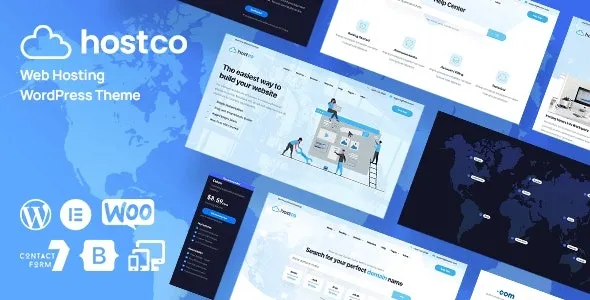
That is the main reason users look for a Hostco – Hosting Service WordPress Theme download rather than adapting a multipurpose design. You are not just choosing colors. You are choosing a page flow that makes hosting products feel understandable on first visit.
Hostco – Hosting Service WordPress Theme is typically used when the site needs to present technical services in a clean, sales-ready way, while still leaving room for knowledge base content, migration messaging, and trust signals like uptime, security, and testimonials. The value is the “default posture” after activation: it starts closer to a hosting business website than a generic blog theme ever will.
After you activate Hostco – Hosting Service WordPress Theme, most users judge it on one thing: how quickly they can get from “new visitor” to “plan selection” without the site feeling improvised.
In real use, a hosting-focused theme earns its keep when it supports a predictable path: homepage summary, plan blocks, feature proof, and a clear next step. Hostco – Hosting Service WordPress Theme is built around that expectation, so you can spend your time refining offers and copy instead of inventing a layout system from scratch.
Where this matters most is on pages that are easy to underestimate:
Pricing and plan comparison pages. You want tiers to scan well on mobile, and you want the “most popular” plan to be visually obvious without looking gimmicky. When the structure is already tuned for plan grids and feature rows, you avoid the common trap of building a pricing page that looks fine on desktop but collapses into a confusing stack on phones.
Service pages beyond hosting. Many hosting businesses also sell SSL, backups, email, or maintenance. A theme that supports consistent subpage layouts helps you keep these add-ons from looking like unrelated landing pages.
Support and trust content. Hosting buyers often look for reassurance. The theme’s typography, spacing, and section rhythm can make uptime statements, support hours, and migration promises feel credible, not squeezed into a generic “about” template.
If your goal is to launch quickly with a coherent hosting brand, it can be more efficient to download Hostco – Hosting Service WordPress Theme theme and shape the content than to assemble the same structure from page-builder blocks one page at a time.
Most users approach a Hostco – Hosting Service WordPress Theme download with a simple goal: install it, import the demo, then replace text and images. That workflow is realistic, but a few practical steps prevent the common “why doesn’t it look like the demo?” moment.
After you complete your Hostco – Hosting Service WordPress Theme download, you usually receive a theme ZIP file (and sometimes a separate child theme ZIP). In WordPress, go to Appearance > Themes > Add New > Upload Theme, upload the ZIP, install, then activate.
If a child theme is included, install and activate the child theme after the parent is installed. This is the safer setup when you plan to edit templates or add custom CSS, because updates are less likely to overwrite your changes.
Demo import is where most setup friction happens. Before importing, confirm you have a clean site or a staging site. Imports can create menus, pages, and placeholder posts that are annoying to untangle later.
Two common mistakes show up repeatedly:
Importing without required plugins. If the theme prompts you to install companion plugins (page builder, widgets, or an importer), do that first. Otherwise, you may end up with missing sections, shortcodes showing on the page, or empty page layouts.
Skipping menu and homepage assignment. After import, check Settings > Reading to set the homepage, and Appearance > Menus to assign the primary menu location. Many users think the import “failed” when the content is present but not assigned.
If you are evaluating quickly, do a minimal setup: activate, import the demo, then inspect the pricing page, a service page, and the contact/support page. That gives you a realistic sense of whether the theme matches your hosting offer without spending hours on styling.
Hosting sites are judged on speed, but themes built for service marketing often rely on heavier section layouts. With Hostco – Hosting Service WordPress Theme, the practical question is not “is it fast?” but “does it stay fast once I add my real content?”
In post-download reality, performance depends on three choices you control:
How you handle the homepage. Many demos use multiple stacked sections, sliders, counters, and icon grids. If you keep everything, you may increase load time and layout shift. A leaner homepage that keeps one strong hero, one plan grid, and one trust section often looks more professional and loads better.
Your image discipline. Hosting themes frequently use large background images. If you replace them with uncompressed uploads, you will feel it immediately on mobile. Use properly sized images and modern formats where possible.
Plugin stacking. It is easy to add chat widgets, analytics, popups, and multiple form plugins. The theme can look “slow” when the real cause is third-party scripts. Test with and without extras before blaming the layout.
A realistic limitation to keep in mind: if you want a site that is almost entirely documentation and blog content, Hostco – Hosting Service WordPress Theme may feel like you are constantly adapting marketing sections to editorial needs. In that case, a lighter documentation-focused theme can be a better fit. But if your primary goal is to sell hosting plans and support services, the structure is closer to what you need from day one.
Most setups include demo content, but “same as demo” depends on installing the required plugins and assigning menus and the homepage after import. If you import successfully but the layout looks incomplete, it is usually a missing plugin or an unassigned page template.
Install on a clean WordPress site or staging first, activate the theme, then install any prompted companion plugins before importing demo content. After import, set your homepage in Settings and assign the primary menu location.
Yes, the theme’s structure generally suits plan-based offers like shared hosting, VPS, or domain bundles. The key is whether the pricing and comparison layout matches how you want to present tiers and add-ons.
This usually happens when plan tables are edited with inconsistent text lengths, extra bullet lists, or too many feature rows. Keep tier descriptions tight, align feature counts across plans, and preview on mobile before finalizing. Small content changes can prevent awkward stacking.
If you only need a single page with a contact form, the theme can be more structure than you need. It shines when you want multiple service pages, a pricing flow, and support or trust pages that feel consistent.
Many hosting themes are designed around a builder-driven workflow for section editing. If your download package recommends a builder plugin, plan on using it for demo parity and faster layout edits. If you prefer block-editor-only editing, test the theme on a staging site first to confirm the experience matches your expectations.
If you are deciding whether to proceed with a Hostco – Hosting Service WordPress Theme download, evaluate it like a customer would. Open the pricing page, check readability on mobile, and see how quickly you can reach support and contact paths. If those pages feel natural and easy to scan, the theme is doing the job it was chosen for.
For Installation or Technical Related Queries check FAQ Page
Our Website also have older version of the plugins and theme. So you can test your website with compatible plugins or Rollback plugins in case of any bug or compatibility issues.
UNZIP the file downloaded from our website, the zip file might contain other files like Template, Docs etc. So make sure you upload correct file.
To Install Plugins:
To Install Themes:
Sometimes theme/plugin might ask you for license, just ignore. Because we have already activated the product with out legal key, which we have purchased for you.
When a New version appears and is available on our website you’ll find it in My Account “Downloads section”.
For Destination Already Exists error:
Make sure to Delete the version of theme/plugin that you have on your website before you upload our premium version, it might cause a conflict during installation and activation.
Or WordPress will say “destination already exists” when trying to upgrade using a zip file and will fail to upgrade the theme or plugin.
If you faced “destination already exists” error installing this Plugin will solve the issue – Easy Theme and Plugin Upgrades.
Our business hours are Monday to Saturday from 10:00 am to 8:00 pm, any request made outside these hours will be answered until next business day. Support and Updates can take 24 to 48 hours. Support provided is for product installation. Please be aware of possible time zone differences when waiting for our reply.
If you have any Queries, Feel Free to Contact Us:
Abuse Warning:
For more information please read FAQs & Terms of Use.