Get upto 60% Discount

Get upto 60% Discount
Unlimited Access:
$10.00 Original price was: $10.00.$2.99Current price is: $2.99.

Tired of Restrictions?
Go Unlimited!
Join Our Membership to Download 8400+ Plugins & Themes

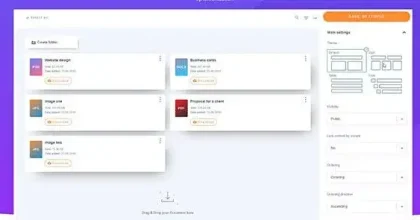
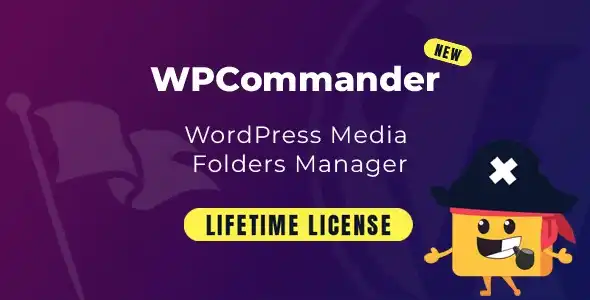
This page is intended for users searching to download WPCommander – WordPress Media Folder Manager for WordPress and understand how it performs as a media plugin once installed. Rather than listing visual features or marketing claims, it explains how the plugin behaves in real media-driven sites, where it fits in a WordPress stack, and how to deploy it without disrupting existing layouts or performance.
Media plugins operate closer to the rendering layer than most WordPress extensions. Because of that, stability, asset control, and compatibility matter more than surface-level options.
WPCommander – WordPress Media Folder Manager is typically introduced after a site’s theme, content structure, and primary plugins are already defined. It is not designed to replace WordPress media handling, but to extend or refine it within a controlled scope.
In practice, the plugin is used when a site needs:
The plugin integrates using WordPress media APIs and standard enqueue logic, allowing it to coexist with page builders, caching tools, and optimization plugins.
A common failure point with media plugins is excessive asset loading or layout interference. WPCommander – WordPress Media Folder Manager is structured to avoid these issues by activating only where media functionality is required.
Operationally, this means:
This approach reduces unexpected visual changes and helps maintain consistent page performance.
Media plugins often become liabilities over time if updates introduce breaking changes or excessive features. WPCommander – WordPress Media Folder Manager follows a maintenance-oriented update cycle that prioritizes compatibility over expansion.
Updates are generally released to:
Because of this, the plugin is commonly kept active for extended periods once configured correctly.
WPCommander – WordPress Media Folder Manager is deployed across different site types that rely on controlled media output:
Its limited and predictable scope makes it easier to test and retain as part of a long-term plugin stack.
To download and install WPCommander – WordPress Media Folder Manager safely:
After activation, review the settings and enable only the media options relevant to your site. Avoid enabling unused components.
Before enabling WPCommander – WordPress Media Folder Manager on a production site:
Because media plugins affect frontend rendering, testing in a staging environment is recommended.
Is WPCommander – WordPress Media Folder
Manager compatible with current WordPress versions?
Yes. Updates are released to maintain compatibility with recent WordPress core releases.
Does it work with modern themes and builders?
In most cases, yes. The plugin avoids forced layout overrides and follows WordPress standards.
Will it slow down the site?
When configured properly, asset loading is limited to relevant pages only.
Are updates disruptive?
Updates focus on compatibility and stability rather than introducing breaking changes.
Version 2.6.0
For Installation or Technical Related Queries check FAQ Page
Our Website also have older version of the plugins and theme. So you can test your website with compatible plugins or Rollback plugins in case of any bug or compatibility issues.
UNZIP the file downloaded from our website, the zip file might contain other files like Template, Docs etc. So make sure you upload correct file.
To Install Plugins:
To Install Themes:
Sometimes theme/plugin might ask you for license, just ignore. Because we have already activated the product with out legal key, which we have purchased for you.
When a New version appears and is available on our website you’ll find it in My Account “Downloads section”.
For Destination Already Exists error:
Make sure to Delete the version of theme/plugin that you have on your website before you upload our premium version, it might cause a conflict during installation and activation.
Or WordPress will say “destination already exists” when trying to upgrade using a zip file and will fail to upgrade the theme or plugin.
If you faced “destination already exists” error installing this Plugin will solve the issue – Easy Theme and Plugin Upgrades.
Our business hours are Monday to Saturday from 10:00 am to 8:00 pm, any request made outside these hours will be answered until next business day. Support and Updates can take 24 to 48 hours. Support provided is for product installation. Please be aware of possible time zone differences when waiting for our reply.
If you have any Queries, Feel Free to Contact Us:
Abuse Warning:
For more information please read FAQs & Terms of Use.