Get upto 60% Discount

Get upto 60% Discount
Unlimited Access:
$15.00 Original price was: $15.00.$4.99Current price is: $4.99.

Tired of Restrictions?
Go Unlimited!
Join Our Membership to Download 8400+ Plugins & Themes

A standard WooCommerce store assumes you control inventory, pricing, shipping rules, and customer support. The moment you want multiple independent sellers, that assumption breaks. You end up juggling shared logins, manual payouts, and messy product ownership.
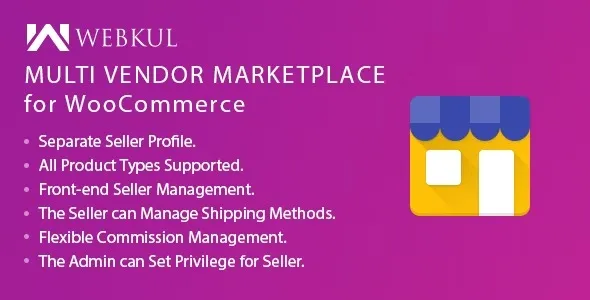
WordPress WooCommerce Multi Vendor Marketplace Plugin is built for that exact pivot. It turns a single WooCommerce site into a marketplace where vendors can manage their own products and orders while you keep platform control.
If you are evaluating a WordPress WooCommerce Multi Vendor Marketplace Plugin download, do it with a clear plan: vendor onboarding, commission rules, and the operational boundaries between vendors and the marketplace admin. Those choices affect everything from support workload to database growth.
At its core, WordPress WooCommerce Multi Vendor Marketplace Plugin adds a vendor layer on top of WooCommerce. Vendors get a dashboard to add products, manage stock, view orders, and track earnings. Admins get tools to approve vendors, set commissions, and oversee marketplace activity.
The value is not “more products.” The value is delegated operations without giving away admin access. That separation is what makes a marketplace workable long term.
What it does not do by itself is create demand. It will not solve vendor quality control, shipping disputes, or customer expectations. You still need marketplace policies, moderation, and a support workflow. Users often overestimate this part and assume the plugin replaces operational planning.
The most common failure is starting with vendor signups before defining rules. Vendors join, list products inconsistently, and customers get a fragmented experience.
Another frequent mistake is ignoring tax and shipping complexity. A marketplace can require per-vendor shipping methods, different origin addresses, and varied tax obligations. If you do not map these early, you will retrofit settings under pressure.
Finally, many stores forget refunds and chargebacks. Decide whether vendors can issue refunds, whether the admin approves them, and what happens to commissions. Document it before the first vendor goes live.
For vendors, the practical win is self-service product management. They can add listings, update pricing, and manage stock without waiting on the marketplace team. That reduces admin bottlenecks, but it increases the need for product standards.
For admins, the workflow shifts from “create products” to “review and govern.” Expect to spend time on vendor approvals, product moderation, commission configuration, and dispute handling.
In real usage, the vendor dashboard becomes the make-or-break feature. If vendor navigation is confusing, you will see support tickets spike. Plan a short onboarding guide and a checklist vendors must follow before publishing their first product.
If you are ready for a WordPress WooCommerce Multi Vendor Marketplace Plugin download, treat it like a core commerce extension. Test first, then launch.
Update WordPress, WooCommerce, and your theme. Take a full backup (files and database). If you already have orders, clone the site to a staging environment to avoid breaking checkout.
In your WordPress admin, go to Plugins, then Add New, then upload the plugin ZIP and install it. Activate it after installation completes.
Open the plugin settings and configure vendor registration, vendor dashboard access, and basic marketplace rules. Decide whether vendors can publish products immediately or if admin approval is required.
Set your commission model early. Flat rate, percentage, or category-based rules change vendor behavior. Confirm payout timing and whether you will pay automatically or after order completion.
Check what vendors can edit: product data, coupons, shipping, and order notes. Limit permissions until you trust vendors. Over-permissioned vendors are a common source of catalog inconsistency.
Create a test vendor, list a product, place an order, and run through fulfillment, refunds, and vendor earnings reporting. Only after this should you repeat the WordPress WooCommerce Multi Vendor Marketplace Plugin download and installation on your live site.
Without a multi-vendor layer, the closest “default” approach is using separate stores, separate user roles, or manual product entry for each seller. That works for a handful of partners, but it does not scale. You become the bottleneck for every price update and stock change.
A marketplace plugin formalizes vendor ownership and reporting. It also creates predictable boundaries: vendors manage their listings, you manage the platform. If you are serious about onboarding more than a few sellers, a WordPress WooCommerce Multi Vendor Marketplace Plugin download is usually the turning point from “collaboration” to “marketplace operations.”
If you only need curated consignment from two or three suppliers and you want full control of every listing, the default approach can still be simpler. Multi-vendor tooling adds settings, roles, and edge cases that you may not need.
Marketplaces scale in two dimensions: catalog size and support load. The catalog can grow quickly, but the real pressure is moderation and customer service.
As product counts rise, you will want consistent product templates, required attributes, and clear image guidelines. Otherwise search and filtering degrade, and shoppers cannot compare items.
On the technical side, more vendors often means more dashboard usage and more queries. Keep an eye on hosting resources, object caching, and database cleanup. Do not wait for the first traffic spike to optimize. If you are planning growth, do the WordPress WooCommerce Multi Vendor Marketplace Plugin download early in staging and test with bulk sample products to approximate real load.
A marketplace is inherently more complex than a single-vendor store. You will trade simplicity for delegation.
Expect to spend time on policy enforcement. Vendors will push boundaries on product categories, shipping promises, and returns. The plugin can help you structure permissions, but it cannot replace governance.
Also expect edge cases: mixed carts with products from multiple vendors, partial refunds, and split shipments. These are solvable, but they require clear rules and consistent communication.
Yes, and you usually should at the start. Approval gates reduce low-quality listings and help you enforce category and image standards while vendors learn your rules.
Decide whether refunds are vendor-initiated, admin-initiated, or vendor-requested with admin approval. Document how commissions are adjusted after refunds so vendors are not surprised.
It can, but shipping configuration becomes more important. Plan for different origin addresses, shipping classes, and delivery time expectations. Test mixed carts so customers see sensible shipping outcomes.
Often, yes, depending on how you run payouts. Even when the marketplace collects payments, vendors typically need a destination account for withdrawals. Confirm the payout flow during setup.
Create a short vendor onboarding checklist: required product fields, image sizes, shipping rules, and how to handle cancellations. Most tickets come from uncertainty, not technical bugs.
If you are about to finalize a WordPress WooCommerce Multi Vendor Marketplace Plugin download, make sure you have answers to three questions: who approves vendors, how commissions are calculated, and who owns customer support. Those decisions determine whether the marketplace feels consistent or chaotic.
Once those are set, the WordPress WooCommerce Multi Vendor Marketplace Plugin download becomes a practical implementation step, not an experiment. Install on staging, test end-to-end, then deploy with confidence.
For many store owners, the right time for a WordPress WooCommerce Multi Vendor Marketplace Plugin download is right after WooCommerce product-market fit is proven and before vendor onboarding begins. That timing avoids painful migrations and keeps vendor expectations aligned from day one.
When you are ready, complete your WordPress WooCommerce Multi Vendor Marketplace Plugin download, configure vendor permissions conservatively, and expand access as you build trust and operational maturity.
For Installation or Technical Related Queries check FAQ Page
Our Website also have older version of the plugins and theme. So you can test your website with compatible plugins or Rollback plugins in case of any bug or compatibility issues.
UNZIP the file downloaded from our website, the zip file might contain other files like Template, Docs etc. So make sure you upload correct file.
To Install Plugins:
To Install Themes:
Sometimes theme/plugin might ask you for license, just ignore. Because we have already activated the product with out legal key, which we have purchased for you.
When a New version appears and is available on our website you’ll find it in My Account “Downloads section”.
For Destination Already Exists error:
Make sure to Delete the version of theme/plugin that you have on your website before you upload our premium version, it might cause a conflict during installation and activation.
Or WordPress will say “destination already exists” when trying to upgrade using a zip file and will fail to upgrade the theme or plugin.
If you faced “destination already exists” error installing this Plugin will solve the issue – Easy Theme and Plugin Upgrades.
Our business hours are Monday to Saturday from 10:00 am to 8:00 pm, any request made outside these hours will be answered until next business day. Support and Updates can take 24 to 48 hours. Support provided is for product installation. Please be aware of possible time zone differences when waiting for our reply.
If you have any Queries, Feel Free to Contact Us:
Abuse Warning:
For more information please read FAQs & Terms of Use.