Get upto 60% Discount

Get upto 60% Discount
Unlimited Access:
$10.00 Original price was: $10.00.$2.99Current price is: $2.99.

Tired of Restrictions?
Go Unlimited!
Join Our Membership to Download 8400+ Plugins & Themes

Location-based pages often start simple. You add a list of stores, offices, service areas, or trail points, then you realize visitors do not want to read a list. They want to see what is near them, what is open, and what fits their intent in a few seconds.
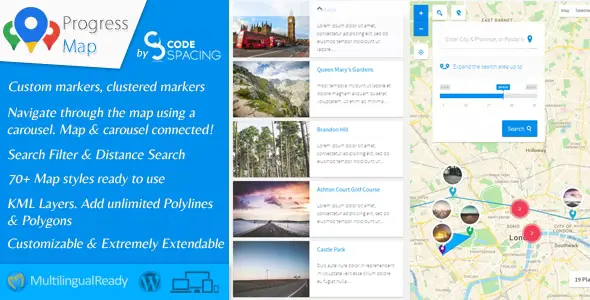
Progress Map WordPress Plugin turns that “directory fatigue” into an interactive map experience with markers, filters, and location details that can live inside a page, post, or custom layout.
If you are evaluating a Progress Map WordPress Plugin download, the practical question is not “does it show pins?” It is whether it helps users find the right place faster without making your admin workflow messy or your pages heavy.
Progress Map WordPress Plugin is built to publish a searchable, filterable map directory that is still manageable from WordPress. You can present locations as markers, pair them with an accompanying list, and let users refine results with categories, tags, or custom filters depending on how you structure your data.
The real value is that it lets a map behave like a navigational interface, not a decorative embed. When configured well, it reduces pogo-sticking because users can compare options in context: distance, category, and quick details without bouncing between pages.
This plugin makes the most sense for businesses and publishers that have repeatable “location objects,” such as store branches, partner resellers, event venues, charging stations, clinics, or points of interest tied to articles.
It is often overbought when the site only needs a single map on a contact page. In that case, a basic embed is simpler and usually faster. The extra value only shows up when you need filtering, a browsable directory, or frequent updates by non-technical editors.
The biggest friction point is not the map itself. It is data consistency. If you mix formats for addresses, categories, and images, the map becomes hard to filter and the list view looks uneven.
Another common mistake is treating every marker as equal. Users scan maps quickly, so grouping by category, using clear marker icons, and writing short, structured location snippets matters more than long descriptions.
Finally, many site owners underestimate how much “map UX” depends on defaults: initial zoom, center point, clustering behavior, and what appears in the info window. Those choices decide whether the map feels helpful or chaotic.
WordPress itself can store locations as posts or custom post types, but it does not provide an interactive map directory layer out of the box. You can build something custom with fields and templates, yet you will still need a mapping interface, marker rendering, and filters.
A simple map embed is fine for one location or a handful of pins. But it usually lacks meaningful filtering, list synchronization, and the “browse and narrow down” behavior people expect from a directory.
Progress Map WordPress Plugin sits in the middle. It is more structured than an embed and less custom than building a full directory system from scratch. If your goal is a map-first browsing experience, a Progress Map WordPress Plugin download is typically justified when you expect ongoing edits and a growing set of locations.
Maps can become heavy when you load too many markers at once, especially on mobile. The practical approach is to use clustering and sensible default zoom so the first paint is not overwhelmed by dozens or hundreds of pins.
If you plan to scale beyond a small directory, pay attention to how you segment locations. Splitting by city pages, category pages, or dedicated map pages can keep each map instance focused. It also helps Google understand intent, since each page can target a specific geographic or topical query rather than one mega-map that tries to rank for everything.
From an editorial standpoint, keep location entries lean. A consistent title, short excerpt, category tags, and a clean featured image are usually enough. Save long-form content for the location’s dedicated page if you are using one.
If you are ready for a Progress Map WordPress Plugin download, install it carefully so you do not lose time to avoidable conflicts.
Update WordPress and your theme first. Then take a fresh backup. If you run caching or optimization plugins, note your current settings so you can revert if needed.
Get the ZIP file from the official source you use for plugin delivery. Keep the ZIP intact. Do not unzip and re-zip it unless you know exactly what you are changing.
In your WordPress admin, go to Plugins, then Add New, then Upload Plugin. Choose the ZIP and install, then activate.
Open the plugin settings and verify the mapping configuration. Then create a test map with a small set of locations. View it on desktop and mobile to confirm zoom, marker clicks, and filtering behavior.
Decide on a standard for address formatting, categories, and images. Apply it to every location entry. Consistency is what makes filters and list views feel “finished.”
After setup, clear cache and re-test. If markers or tiles fail to load, temporarily disable aggressive JavaScript optimization and test again. Many map issues come from deferred scripts or combined files.
For multi-location businesses, editors usually maintain locations like a directory. The map becomes the front door, while each location can link to a detail page with hours, phone, and local FAQs.
For publishers, it often works best as a “map hub” that supports multiple articles. For example, a hiking site can publish a map of trailheads and then link each marker to a guide. That approach keeps the map page index-worthy while letting content pages rank for specific queries.
For events, the map can act as a planning tool. Users filter venues by category, then click through to details. The key is to keep the map current. Outdated markers reduce trust quickly.
A map directory is not automatically an SEO strategy. If you publish one page with hundreds of markers and minimal text, it may not index well or may rank only for branded terms. You often need supporting pages that target specific cities, categories, or use cases.
Also, maps are inherently interactive. Some users will not engage with them, especially if they are in a hurry. Pairing the map with a readable list view and clear filters helps both accessibility and conversion.
Finally, do not expect the plugin to fix messy location data. If your addresses are inconsistent or your categories overlap, the map will reflect that confusion.
It can support indexing if you pair the map with crawlable content. A map alone is not a strong indexing signal. Consider adding a short introduction, a structured list view, and links to individual location pages or filtered category pages.
It depends on hosting, caching, and how markers are loaded. In practice, performance issues show up when too many markers render at once. Use clustering and split large datasets into multiple maps or pages when the directory grows.
This is usually an address formatting or geocoding issue. Standardize address fields, include city and country, and avoid abbreviations that can be interpreted differently. Test a few entries before bulk-adding locations.
Many directory setups work best with a dedicated location post type so you can control templates and internal linking. Whether you can connect directly depends on your configuration and how you store fields, but the cleanest workflow is to keep each location as a structured entry with consistent metadata.
First, test with caching and script optimization temporarily disabled. Filter UI issues are often caused by deferred JavaScript or combined scripts. Then re-enable optimizations one by one to find the conflict.
If those 5 locations need filtering, a polished list view, or frequent updates by editors, yes. If you just need a static “find us” map, a basic embed is usually enough.
If you are comparing options and leaning toward a Progress Map WordPress Plugin download, decide your structure before you install: what counts as a location, which categories matter, and whether each marker should link to a dedicated page.
A thoughtful structure makes the plugin feel fast and intuitive. A rushed import makes it feel like a cluttered map with pins that nobody trusts.
When you are ready, proceed with your Progress Map WordPress Plugin download, install it on a staging site first if possible, and build one complete example location from end to end. That single test run usually reveals the settings that matter for your visitors.
For teams managing a growing directory, a Progress Map WordPress Plugin download is most valuable when you treat the map as navigation, not decoration. Configure filters, keep entries consistent, and publish supporting pages that match real search intent.
If your next step is the Progress Map WordPress Plugin download, focus on data quality and page structure from day one. That is what keeps the map useful as your site scales.
For Installation or Technical Related Queries check FAQ Page
Our Website also have older version of the plugins and theme. So you can test your website with compatible plugins or Rollback plugins in case of any bug or compatibility issues.
UNZIP the file downloaded from our website, the zip file might contain other files like Template, Docs etc. So make sure you upload correct file.
To Install Plugins:
To Install Themes:
Sometimes theme/plugin might ask you for license, just ignore. Because we have already activated the product with out legal key, which we have purchased for you.
When a New version appears and is available on our website you’ll find it in My Account “Downloads section”.
For Destination Already Exists error:
Make sure to Delete the version of theme/plugin that you have on your website before you upload our premium version, it might cause a conflict during installation and activation.
Or WordPress will say “destination already exists” when trying to upgrade using a zip file and will fail to upgrade the theme or plugin.
If you faced “destination already exists” error installing this Plugin will solve the issue – Easy Theme and Plugin Upgrades.
Our business hours are Monday to Saturday from 10:00 am to 8:00 pm, any request made outside these hours will be answered until next business day. Support and Updates can take 24 to 48 hours. Support provided is for product installation. Please be aware of possible time zone differences when waiting for our reply.
If you have any Queries, Feel Free to Contact Us:
Abuse Warning:
For more information please read FAQs & Terms of Use.