Exclusive Sale! Grab Flat 10% OFF* | On All Products

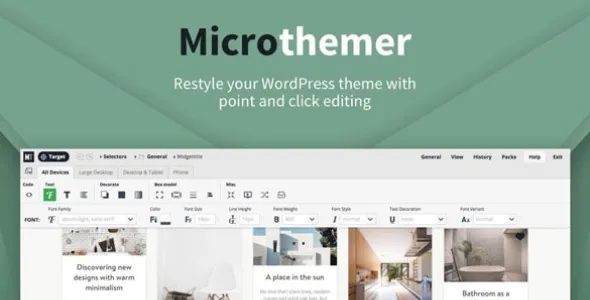
Microthemer – WordPress Visual CSS Editor

Microthemer - WordPress Visual CSS Editor

  Unlimited License:

Original price was: $10.00.Current price is: $2.99.

Or

Tired of Restrictions?
Go Unlimited!

Join Our Membership to Download 8400+ Plugins & Themes

Membership Banner image for ultraplugins store

Microthemer WordPress Visual CSS Editor Download with Full Review, Tutorial & Comparison

TL;DR:

  • Download Microthemer, which is a powerful visual CSS editor for WordPress that lets you style any element in real time.
  • It works with all major page builders, supports CSS Grid, Flexbox, and gives both beginners and developers precise control.
  • Ideal for designers, agencies, and site owners who want to create pixel-perfect styling fast.
  • In this post: key features, pricing, pros/cons, comparison with CSS Hero & YellowPencil, tutorial, speed considerations, FAQs, and final verdict.

Who Should Use Microthemer?

  • WordPress users wanting visual CSS control
  • Designers who want precise styling without writing full CSS
  • Agencies managing multiple client sites
  • Elementor, Beaver Builder, Oxygen, or Gutenberg users
  • Developers who want to speed up workflow with live editing
  • Anyone needing a Grid/Flexbox visual editor inside WordPress

What This Guide Covers

In this full guide to Microthemer WordPress Visual CSS Editor, we’ll break down how it works, its best features, pricing, performance, pros/cons, alternatives, and a hands-on tutorial including an example CSS snippet.

Microthemer WordPress Visual CSS Editor Download (Full Review & Hands-On Guide)

If you’ve ever wished you could visually style any part of your WordPress site like header, buttons, forms, WooCommerce layouts without digging into theme files, Microthemer is built exactly for that.

Microthemer WordPress Visual CSS Editor combines a drag-and-style interface with full developer-grade CSS controls, so you can tweak spacing, fonts, colors, animations, Flexbox layouts, and even CSS Grid in real time. In this in-depth guide, we’ll review its features, pricing, performance, and how it compares to CSS Hero and YellowPencil.

What Is Microthemer?

Microthemer is a live, visual CSS editor plugin for WordPress that lets you target any element, adjust its styling visually, and instantly preview the results.
According to WordPress.org, it is one of the most advanced visual CSS tools available, offering full CSS property support, responsive breakpoints, and real-time editing inside your WordPress dashboard.

A visual CSS editor powerful enough for developers, but intuitive enough for beginners.

It’s actively maintained, and well-reviewed across WordPress marketplaces, Product Hunt, and independent blogs.

If you’re looking to download Microthemer for quick design control, or you want the full Microthemer Pro download for advanced CSS work, its capabilities go far beyond typical visual design plugins.

Key Features (with real-world benefits)

Below is a breakdown of Microthemer’s most important features and why they matter.

Live Visual Editing (Real-Time Preview)

  • Benefit: See every change instantly—no saving, refreshing, or editing theme files.
  • Use case: Adjust button spacing, tweak headings, restyle form fields live.

Advanced Selector Targeting

  • Benefit: Select very specific elements visually or manually using deep CSS targeting.
  • Use case: Style just the third product card on a WooCommerce grid or target only a specific widget.

Full CSS Property Support (including Grid & Flexbox)

  • Benefit: Unlike most visual editors, Microthemer supports 100% of CSS, including advanced layout systems.
  • Use case: Create a responsive CSS Grid layout or turn a section into a perfect Flexbox container without writing code.

Responsive Breakpoints

  • Benefit: Add custom breakpoints or use presets (desktop/tablet/mobile).
  • Use case: Reduce padding on mobile buttons or adjust column spacing for tablets.

Integrated Code Editor View

  • Benefit: Designers can stay visual, developers can view/write CSS with syntax highlighting.
  • Use case: Add custom hover effects, pseudo-elements, transitions.

Exportable CSS

  • Benefit: Once done, you can export your CSS and move it to a theme or child theme.
  • Use case: Agencies can deliver clean CSS files to clients without requiring the plugin.

Page Builder Integrations

  • Elementor
  • Beaver Builder
  • Oxygen
  • Bricks
  • Gutenberg

Themeover also offers an Amender tool for quick content edits.

Why Microthemer is Better Than Typical “Download & Use” Styling Plugins

Most CSS or design plugins offer limited features. Microthemer stands out because:

1. It supports ALL CSS properties

  • Flexbox
  • Grid
  • Transform
  • Transitions
  • Animations
  • Pseudo-selectors (:hover, :focus, etc.)
  • Media queries
  • Filters
  • Box shadows, gradients, custom fonts

2. It gives pixel-perfect control

  • Every element can be styled with exact precision.

3. Superior selector engine

  • Allows targeting of any element — even inside complex page builders.

4. Perfect for WooCommerce

  • Style product pages
  • Add-to-cart buttons
  • Price formatting
  • Variation selectors
  • And more

5. Beginner-friendly, yet developer-powerful

  • Beginners use the visual interface.
  • Developers use the integrated code editor.

6. The Microthemer download size is small

  • Lightweight plugin that does not slow down your site.

Microthemer in Action – A Quick Tutorial

Below is a simple 7-step guide to get started.

Step 1: Install Microthemer

  • Install from your WordPress dashboard or upload the plugin ZIP.
  • Activate the plugin and launch the visual interface.

Step 2: Open Any Page in the Visual Editor

  • Microthemer loads your site in a live preview window.
  • You can visually click and target any element for styling.
  • Screenshot suggestion: Microthemer dashboard with selectors panel visible.

Step 3: Click the Element You Want to Style

  • Click any element—button, text, form field, section, widget.
  • Microthemer automatically detects all CSS selectors for that item.

Step 4: Change Styling in the Properties Panel

  • Adjust padding and margins
  • Edit borders, colors, backgrounds
  • Modify typography settings
  • Control Flexbox layout
  • Edit CSS Grid properties

Step 5: Make a Mobile Adjustment

  • Switch to a responsive breakpoint (mobile/tablet/desktop).
  • Change spacing, size, alignment, or layout responsively.
  • GIF suggestion: Demonstrate padding changes on mobile view.

Step 6: Add a Hover Effect

  • Select “State → Hover” from the interface.
  • Modify hover background color, border, shadow, or add transform effects.

Step 7: Export CSS (Optional)

  • Open the Export CSS panel to download clean, organized CSS.
  • You can move the exported file to a theme or child theme.
  • Screenshot suggestion: Export CSS panel.

css:

.elementor-button {
padding: 14px 28px;
border-radius: 6px;
background-color: #0073e6;
}

.elementor-button:hover {
background-color: #004ea8;
}

Performance & UX Review

Microthemer loads its interface only in the backend and applies optimized CSS on the frontend.

Speed

  • Does not load heavy scripts on the public-facing site.
  • Adds only a single optimized CSS file unless you export and relocate it.

Compatibility

  • Elementor
  • Beaver Builder
  • Oxygen
  • Gutenberg
  • Kadence / Astra / GeneratePress themes

UX

  • Clean, intuitive interface
  • Organized panels for CSS properties
  • Helpful documentation and tooltips
  • Reliable undo/redo system

Potential Issues

  • The full-width interface can feel overwhelming for complete beginners.
  • Users with zero CSS knowledge may need time to understand selectors and targeting.

Microthemer vs CSS Hero vs YellowPencil Comparison Table

Many users looking for “Microthemer Pro download” compare it with CSS Hero or YellowPencil.


Feature Microthemer CSS Hero YellowPencil
Price Varies; annual/lifetime Annual One-time
Best For Designers & developers Beginners Visual designers
Learning Curve Medium Easy Easy
Full CSS Support ✔ (incl. Grid/Flexbox) ✖ partial ✖ limited
Integrations Elementor, Beaver, Oxygen Elementor, Divi Most themes/builders
Code Editor
Export CSS Partial
Deactivate Safe?
Advanced Layout Editing Limited Limited


Pros & Cons

Pros

  • Full visual CSS editor
  • Real-time preview
  • Supports 100% of CSS properties
  • Advanced Grid / Flexbox tools
  • Powerful selector targeting
  • Great for devs & agencies
  • Exportable CSS
  • Safe deactivation
  • Integrates with major page builders

Cons

  • Interface may feel advanced for beginners
  • Learning curve for CSS fundamentals
  • Some features are hidden behind buttons (discoverability issues)
  • Can encourage styling overrides instead of editing theme files (if misused)

Benefits of Downloading Microthemer SEO & Accessibility Considerations

Using a visual CSS editor can affect site performance if overused. Here’s what to keep in mind:

SEO Tips

  • Minify exported CSS
  • Avoid styling entire page sections unnecessarily
  • Remove unused selectors
  • Consider moving final CSS into the theme for long-term speed

Accessibility Tips

  • Ensure sufficient color contrast
  • Avoid styling that hides outlines or focus indicators
  • Use relative units (rem, em) for scalable typography
  • Test designs with keyboard navigation

Responsive Design

Microthemer’s breakpoint system helps ensure the site looks good across screen sizes.

Frequently Asked Questions (FAQs)

1. What is Microthemer and how is it different from a page builder?

It styles elements visually but does not modify layout or content like Elementor or Beaver Builder.

2. Can beginners use Microthemer without CSS knowledge?

Yes, but knowing CSS basics greatly improves results.

3. Does Microthemer generate clean CSS I can export?

Yes — it creates clean, readable CSS that you can move to child themes.

4. Is Microthemer compatible with Elementor/Beaver/Oxygen?

Fully compatible.

5. Does Microthemer affect site speed?

Minimal impact — only a small CSS file loads on the frontend.

6. Can I deactivate Microthemer and keep my styles?

Yes — styles remain intact.

7. How does Microthemer pricing work?

Annual and lifetime licenses are available, including agency/unlimited options.

8. Are there good alternatives to Microthemer?

CSS Hero and YellowPencil are simpler visual editors.

9. Can developers write CSS directly?

Yes — the built-in code editor supports full custom CSS coding.

10. Does Microthemer support Grid and Flexbox?

Yes — and this is one of its biggest advantages.

For Installation or Technical Related Queries check FAQ Page

Our Website also have older version of the plugins and theme. So you can test your website with compatible plugins or Rollback plugins in case of any bug or compatibility issues.

UNZIP the file downloaded from our website, the zip file might contain other files like Template, Docs etc. So make sure you upload correct file.

To Install Plugins:

  • Download the latest .ZIP file from UltraPlugins Store.
  • Log into your WordPress site.
  • Go to Plugins > Add New.
  • Click the “Upload Plugin” button at the top of the page.
  • Select the zip file with the new plugin version to install.
  • Click the “Install Now” button.


To Install Themes:

  • Download the latest .ZIP file from UltraPlugins Store.
  • Some Theme needs to be extracted before installing & some don’t. So extract the theme, main theme and child should be inside.
  • Log into your WordPress site.
  • Go to Appearance > Themes.
  • Click the “Add New” button at the top of the page.
  • Click the “Upload Theme” button at the top of the page.
  • Select the zip file with the new theme version to install.
  • Click the “Install Now” button.


Sometimes theme/plugin might ask you for license, just ignore. Because we have already activated the product with out legal key, which we have purchased for you.

When a New version appears and is available on our website you’ll find it in My Account “Downloads section”.

For Destination Already Exists error:

Make sure to Delete the version of theme/plugin that you have on your website before you upload our premium version, it might cause a conflict during installation and activation.

Or WordPress will say “destination already exists” when trying to upgrade using a zip file and will fail to upgrade the theme or plugin.

If you faced “destination already exists” error installing this Plugin will solve the issue – Easy Theme and Plugin Upgrades.

Our business hours are Monday to Saturday from 10:00 am to 8:00 pm, any request made outside these hours will be answered until next business day. Support and Updates can take 24 to 48 hours. Support provided is for product installation. Please be aware of possible time zone differences when waiting for our reply.

If you have any Queries, Feel Free to Contact Us: 


Abuse Warning:

  • Please note that accounts are monitored and redistribution of our content is not allowed and will not be tolerated.
  • Our system may detect patterns of downloading items from non-end users outside of our fair use policy.
  • Any violation of our terms of use will result in permanent account suspension and no refunds will be issued.
  • Subscriptions can be cancelled at any time from your account control panel.
  • Downloads are strictly subject to our fair use policy.


For more information please read FAQs & Terms of Use.

Related Products

Ver: 3.5.2.1

Select your currency