Get upto 60% Discount

Get upto 60% Discount
Unlimited Access:
$10.00 Original price was: $10.00.$2.99Current price is: $2.99.
Available Download Files

Tired of Restrictions?
Go Unlimited!
Join Our Membership to Download 8400+ Plugins & Themes

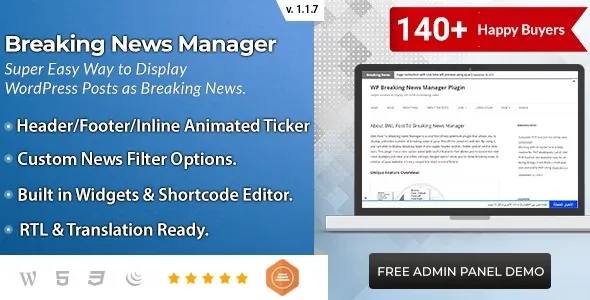
Most WordPress sites handle urgent updates in a hurry. You pin a post, add a banner in a page builder, or manually edit a widget and hope visitors notice. That works until you need consistency across templates, categories, and devices. BWL Post To Breaking News Manager is typically downloaded for one reason: to turn time sensitive posts into a controlled “breaking” stream you can manage without repeatedly editing theme files or rebuilding layouts.
If you are here for a BWL Post To Breaking News Manager download, it helps to know what you are installing and what changes after activation. This plugin is aimed at publishers who want a repeatable way to promote selected posts as breaking items, then retire them cleanly when the moment passes.
The core value is not “more options.” It is predictability. After you activate BWL Post To Breaking News Manager, you can treat breaking items as a managed set rather than a one off design change. That difference matters when multiple editors publish content and the site needs a consistent “urgent” surface across pages.
In practice, users download this plugin to reduce the editorial friction that comes from mixing content decisions with presentation decisions. Instead of asking someone to edit header code, swap a widget, or change a menu item, the workflow becomes closer to standard publishing: choose the post, mark it for breaking visibility, and let the site output handle the rest.
This also helps avoid the common problem where “breaking news” becomes permanent. When the mechanism is manual, items linger because removing them feels risky. A manager style approach makes expiry or removal a normal step, not a theme change.
For a safe setup, start with a straightforward BWL Post To Breaking News Manager download from a reputable plugin source, then keep the original ZIP intact. Avoid renaming plugin folders before upload, since WordPress relies on consistent paths for updates and activation.
Typical installation steps are familiar:
Go to your WordPress admin, open Plugins, choose Add New, then Upload Plugin, select the ZIP you downloaded, and click Install Now. After installation completes, click Activate. If you prefer SFTP, upload the extracted folder to wp-content/plugins, then activate it from the Plugins screen.
Immediately after activation, check three things before you configure anything else. First, confirm there are no PHP errors or admin notices. Second, verify your theme cache and any page cache are cleared so you are seeing current output. Third, locate where the plugin surfaces its settings or management screen, then save settings once even if you keep defaults. That initial save often creates baseline options and prevents “why is nothing showing” confusion.
If your goal is to download and install BWL Post To Breaking News Manager quickly on a production site, do it during a low traffic window. Breaking news features tend to touch header areas or global components, which are the first places visitors notice layout shifts.
BWL Post To Breaking News Manager is easiest to use when you decide what “breaking” means for your site. Some teams treat it as the latest urgent post. Others treat it as a short list that rotates over a day. The plugin becomes more useful when you define a simple rule editors can follow.
A common post download friction point is assuming the plugin will automatically detect “important” posts. In most editorial setups, it is better that it does not. Automation can promote the wrong content and create credibility issues. Plan on a deliberate selection step, even if it is just one checkbox or a quick assignment inside the post editor.
Another mistake is stacking multiple attention mechanisms. If your theme already has a top bar announcement, a breaking ticker, and a sticky featured post, adding a breaking manager can create competing signals. Users often install this plugin, then realize they only needed one controlled surface. If your site already has a reliable announcement system and your editors use it consistently, you may not need a dedicated breaking manager at all.
For larger sites, the biggest practical consideration is governance, not speed. Decide who can mark a post as breaking, how long it stays active, and how it is removed. Without that, the plugin works technically but the output becomes noisy. The best results come from a simple checklist: confirm headline, confirm category, confirm time window, then publish and promote.
Start by downloading the plugin ZIP from a trusted plugin distributor or the developer’s official channel, then install it through the WordPress Plugins screen. After activation, clear caches and review the plugin’s settings page once to confirm defaults are saved correctly. This reduces “installed but not visible” issues.
Usually, nothing public changes until you configure where breaking items appear and you mark at least one post for breaking visibility. You should expect new admin options and, depending on your setup, a new placement method such as a widget, shortcode, or theme hook integration.
Not exactly. Sticky posts are a WordPress core behavior that affects ordering in certain queries. A breaking manager is typically a separate layer focused on urgent visibility. Many sites keep sticky posts for evergreen “start here” content and use breaking items for short lived updates.
The usual causes are: no post has been assigned as breaking, the display output has not been added to the theme location you expect, or caching is serving an old header. Confirm you have at least one breaking item selected, then verify the output placement method the plugin uses, and clear any caching plugins or CDN cache.
In most cases, the breaking set is small, so the front end workload is limited. Slowdowns are more likely when the breaking output is placed in a globally loaded area and your site runs heavy page caching rules or complex queries. Keep the breaking list tight and avoid unnecessary duplication across multiple site components.
Yes, but it works best with a defined editorial rule. Decide who can mark posts as breaking and how long items remain active. Without that, the plugin can become a second “featured” area that grows over time and loses the urgency signal.
If you are evaluating whether to proceed with a BWL Post To Breaking News Manager download, the key question is simple: do you need a repeatable, low friction way to surface urgent posts without theme edits each time? If yes, this plugin tends to fit. If your site only runs occasional announcements and your current banner or sticky workflow is already reliable, you may find you do not need a dedicated breaking manager.
For users comparing sources, the safest path is to treat the BWL Post To Breaking News Manager plugin download as part of a standard deployment routine: download, install, activate, verify, then configure placement and editorial rules before you rely on it during a real breaking event.
For Installation or Technical Related Queries check FAQ Page
Our Website also have older version of the plugins and theme. So you can test your website with compatible plugins or Rollback plugins in case of any bug or compatibility issues.
UNZIP the file downloaded from our website, the zip file might contain other files like Template, Docs etc. So make sure you upload correct file.
To Install Plugins:
To Install Themes:
Sometimes theme/plugin might ask you for license, just ignore. Because we have already activated the product with out legal key, which we have purchased for you.
When a New version appears and is available on our website you’ll find it in My Account “Downloads section”.
For Destination Already Exists error:
Make sure to Delete the version of theme/plugin that you have on your website before you upload our premium version, it might cause a conflict during installation and activation.
Or WordPress will say “destination already exists” when trying to upgrade using a zip file and will fail to upgrade the theme or plugin.
If you faced “destination already exists” error installing this Plugin will solve the issue – Easy Theme and Plugin Upgrades.
Our business hours are Monday to Saturday from 10:00 am to 8:00 pm, any request made outside these hours will be answered until next business day. Support and Updates can take 24 to 48 hours. Support provided is for product installation. Please be aware of possible time zone differences when waiting for our reply.
If you have any Queries, Feel Free to Contact Us:
Abuse Warning:
For more information please read FAQs & Terms of Use.