Get upto 60% Discount

Get upto 60% Discount
Unlimited Access:
$10.00 Original price was: $10.00.$2.99Current price is: $2.99.
Available Download Files

Tired of Restrictions?
Go Unlimited!
Join Our Membership to Download 8400+ Plugins & Themes

If you publish video posts and the surrounding page is thin, captions and supporting text are usually what is missing. Not just for accessibility, but for clarity, skimmability, and for giving search engines something meaningful to index beyond an embedded player.
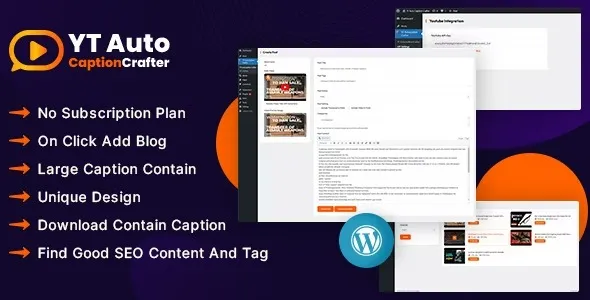
YT Auto Caption Crafter Video Content Generator WordPress Plugin is typically downloaded for that exact gap. People want a faster way to turn a video into usable on-page content without manually transcribing, formatting, and rewriting everything from scratch.
Before you commit to a YT Auto Caption Crafter Video Content Generator WordPress Plugin download, it helps to know what it will change in your workflow after activation, and where it will not magically fix underlying content or SEO issues.
The core value is time-to-publish. Manual captioning and post writing is slow, and it is inconsistent across a team. Even when you have captions, they often live only inside the video platform, not on your WordPress page where you need readable text blocks, summaries, or structured sections.
After installation, the expected outcome is simple: you can generate caption-based text that becomes part of your post content, giving each video URL a stronger “content body” that users can scan. That tends to reduce bounce on video-heavy pages because visitors get context immediately, even with sound off.
It also supports a cleaner editorial process. Instead of treating video and article content as separate assets, you can treat captions as the first draft for the page. The practical win is not “more content.” It is having a repeatable starting point that your editor can quickly tighten, brand, and publish.
A typical YT Auto Caption Crafter Video Content Generator WordPress Plugin download results in a ZIP file you upload in WordPress. In your dashboard, go to Plugins, Add New, then Upload Plugin, choose the ZIP, and install it. After installation, click Activate.
Immediately after activation, check for a new menu item or settings page. Most caption and content generation plugins require at least one initial configuration step, such as connecting a video source, selecting a language, or choosing how generated text is inserted into posts. Do that setup before testing on a live page.
For safety and stability, confirm three things right away: the plugin appears in your Plugins list without errors, your site front end loads normally, and your editor (Block Editor or Classic Editor) still behaves as expected. If you run caching or minification, clear caches after activation so you are testing the real output.
When you download and install YT Auto Caption Crafter Video Content Generator WordPress Plugin, start with a staging page or a draft post. Generate captions for a single video and inspect the result in both the editor and the front end. You are looking for formatting that matches your theme, and for text that is placed in the right location in your content template.
This is also where a second YT Auto Caption Crafter Video Content Generator WordPress Plugin download check matters in practice: ensure you are installing the intended version, and verify the plugin updates normally through your WordPress workflow so you are not stuck on an outdated build.
The most common friction is not installation. It is output management. Caption-derived text can be long, repetitive, or filled with verbal filler. If you publish it raw, you may end up with pages that feel bloated, or that repeat the same phrases across multiple videos in a series.
A good approach is to treat generated captions as source material. Convert them into a clean summary, a few scannable sections, and only keep the transcript when it genuinely helps the user. If your site publishes many similar videos, this editing step is what prevents duplicate-intent pages where every post looks the same to both readers and crawlers.
Another practical issue is placement. If the plugin inserts content above the fold, it can push your video down and harm engagement. If it inserts too far below, users may never see the supporting text. Test where the generated content lands in your theme layout, especially on mobile.
On larger sites, scaling is less about server load and more about editorial consistency. When you generate content for dozens of posts, decide upfront how you will structure it. For example, always include a short intro, key points, and an optional transcript section. Without a standard, you will later have to re-edit many pages to keep them coherent.
If your main goal is index coverage for video pages, remember that captions alone are not a strategy. You still need unique titles, a clear topic focus per page, and internal links that reflect how people navigate your content. The plugin can accelerate content creation, but it cannot choose the right page intent for you.
Activate it, then create a draft post with one representative video. Generate captions once, review the formatting on the front end, and adjust settings before you apply it to multiple posts. This avoids repeating the same cleanup work across your library.
Usually they are close, but accuracy varies with audio quality, accents, and background noise. Plan for a quick editorial pass. Even when words are correct, captions often need trimming to remove filler and to read naturally as page content.
Most users install it specifically to improve existing video posts that feel thin. The key is to update a small batch first, confirm the output matches your preferred layout, and then expand to the rest of your archive.
It can help, but only when the transcript supports a clear page topic and improves user understanding. If every page in a series gets near-identical caption blocks, you can create duplicate-intent pages that compete with each other. Edit and differentiate the supporting text so each page earns its own purpose.
Publishing raw transcript text everywhere. It often creates long pages with low signal-to-noise ratio. A better pattern is to use captions to build a structured summary and keep the full transcript only when it serves the user.
Yes. Configure output placement so the video stays near the top, then add a short “what you will learn” section and key points immediately below. Put longer transcript content further down, ideally behind a collapsible section if your theme supports it.
Many users searching for a YT Auto Caption Crafter Video Content Generator WordPress Plugin download are trying to ship video pages faster while keeping them readable and indexable. If that is your goal, this plugin is most useful when you treat its output as a draft layer that your site can standardize and refine.
For teams building video libraries, a YT Auto Caption Crafter Video Content Generator WordPress Plugin download can also be a workflow decision. It is less about one post and more about setting a repeatable pattern for how captions become publish-ready page content.
For Installation or Technical Related Queries check FAQ Page
Our Website also have older version of the plugins and theme. So you can test your website with compatible plugins or Rollback plugins in case of any bug or compatibility issues.
UNZIP the file downloaded from our website, the zip file might contain other files like Template, Docs etc. So make sure you upload correct file.
To Install Plugins:
To Install Themes:
Sometimes theme/plugin might ask you for license, just ignore. Because we have already activated the product with out legal key, which we have purchased for you.
When a New version appears and is available on our website you’ll find it in My Account “Downloads section”.
For Destination Already Exists error:
Make sure to Delete the version of theme/plugin that you have on your website before you upload our premium version, it might cause a conflict during installation and activation.
Or WordPress will say “destination already exists” when trying to upgrade using a zip file and will fail to upgrade the theme or plugin.
If you faced “destination already exists” error installing this Plugin will solve the issue – Easy Theme and Plugin Upgrades.
Our business hours are Monday to Saturday from 10:00 am to 8:00 pm, any request made outside these hours will be answered until next business day. Support and Updates can take 24 to 48 hours. Support provided is for product installation. Please be aware of possible time zone differences when waiting for our reply.
If you have any Queries, Feel Free to Contact Us:
Abuse Warning:
For more information please read FAQs & Terms of Use.