Get upto 60% Discount

Get upto 60% Discount
Unlimited Access:
$10.00 Original price was: $10.00.$2.99Current price is: $2.99.
Available Download Files

Tired of Restrictions?
Go Unlimited!
Join Our Membership to Download 8400+ Plugins & Themes

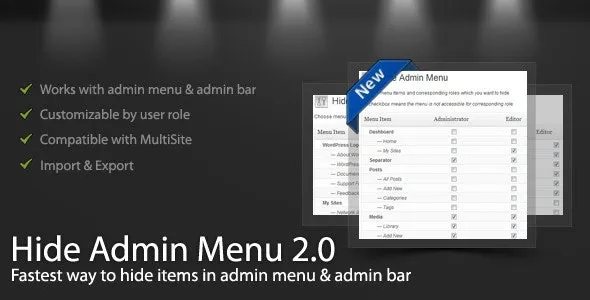
WordPress Hide Admin Menu Plugin is used to simplify the WordPress dashboard by controlling which admin menu items are visible to specific users. This is not a security plugin and not a role editor. Its purpose is to reduce visual complexity and prevent accidental access to areas that certain users do not need to interact with.
This page explains how the plugin behaves once activated, why it is used in real WordPress installations, and how to apply it responsibly without locking yourself out or confusing other administrators.
As WordPress sites grow, the admin dashboard often becomes crowded. Plugins add their own menus, WooCommerce introduces multiple sub-sections, and editors or clients are presented with options they never use.
This creates two recurring problems:
The issue is not permissions, but visibility. WordPress Hide Admin Menu Plugin addresses this by allowing site owners to control what appears in the admin interface without changing how WordPress itself works.
After you download and activate WordPress Hide Admin Menu Plugin, nothing changes immediately on the frontend or in site functionality. All changes are limited to the admin interface.
In practice:
This ensures the plugin improves usability without interfering with WordPress core behavior.
Understanding limitations is important for long-term use.
WordPress Hide Admin Menu Plugin does not:
Its role is interface control, not access control. Many site owners use it alongside proper role or security plugins for this reason.
This plugin is commonly installed after:
Agencies and developers often use it as a final layer to clean up the dashboard and reduce support requests caused by users clicking the wrong menu items.
Typical production use cases include:
In each case, the goal is clarity, not restriction.
To install the plugin on your WordPress site:
Once activated, make small changes first and confirm the result before hiding additional menus.
Before using the plugin on a live site:
These steps help prevent confusion and reduce the risk of accidental access issues.
Will hiding a menu item break a plugin?
No. The plugin only affects visibility, not functionality.
Can hidden menus be restored easily?
Yes. All changes can be modified or reversed from the plugin settings.
Does this affect site visitors?
No. All changes are limited to the WordPress admin dashboard.
Is this compatible with recent WordPress versions?
Yes. Updates focus on compatibility with current WordPress releases.
Version 3.1.0
For Installation or Technical Related Queries check FAQ Page
Our Website also have older version of the plugins and theme. So you can test your website with compatible plugins or Rollback plugins in case of any bug or compatibility issues.
UNZIP the file downloaded from our website, the zip file might contain other files like Template, Docs etc. So make sure you upload correct file.
To Install Plugins:
To Install Themes:
Sometimes theme/plugin might ask you for license, just ignore. Because we have already activated the product with out legal key, which we have purchased for you.
When a New version appears and is available on our website you’ll find it in My Account “Downloads section”.
For Destination Already Exists error:
Make sure to Delete the version of theme/plugin that you have on your website before you upload our premium version, it might cause a conflict during installation and activation.
Or WordPress will say “destination already exists” when trying to upgrade using a zip file and will fail to upgrade the theme or plugin.
If you faced “destination already exists” error installing this Plugin will solve the issue – Easy Theme and Plugin Upgrades.
Our business hours are Monday to Saturday from 10:00 am to 8:00 pm, any request made outside these hours will be answered until next business day. Support and Updates can take 24 to 48 hours. Support provided is for product installation. Please be aware of possible time zone differences when waiting for our reply.
If you have any Queries, Feel Free to Contact Us:
Abuse Warning:
For more information please read FAQs & Terms of Use.