Get upto 60% Discount

Get upto 60% Discount
Unlimited Access:
$10.00 Original price was: $10.00.$2.99Current price is: $2.99.
Available Download Files

Tired of Restrictions?
Go Unlimited!
Join Our Membership to Download 8400+ Plugins & Themes

Once you run more than one WordPress site, user management turns into a quiet time sink. Someone updates their email on Site A, then support asks why Site B still shows the old address. A customer gets removed from a private portal, but they can still log in somewhere else. None of this is “hard”, it is just repetitive and error-prone.
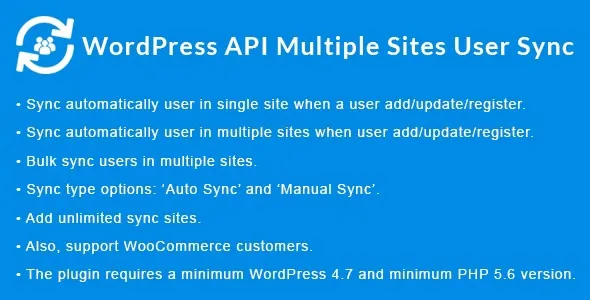
WordPress API Multiple Sites User Sync is built for that exact friction. It focuses on synchronizing user data across multiple WordPress sites via an API-driven approach so the same person does not become three slightly different accounts.
If your goal is to install and start testing quickly, look for a WordPress API Multiple Sites User Sync download package from a trusted source and keep a clean update path. You will save time later when you need to patch, roll back, or reproduce an issue.
The core value is simple: a controlled way to keep user records consistent across separate WordPress installations without manually duplicating changes.
In practice, that usually means you can treat one site as the “source of truth” for user identity details and push or pull updates through an API workflow. Instead of exporting users, importing CSVs, or writing one-off scripts, you get a repeatable sync layer that can be integrated into your existing operational habits.
This matters most when identity is tied to access. Membership levels, private content, client portals, training sites, or internal tools all break down when user data drifts. WordPress API Multiple Sites User Sync helps reduce that drift, and it does it in a way that is easier to audit than ad hoc manual edits.
Most site owners do not notice user fragmentation until a workflow breaks. It shows up as “login not working”, “wrong role”, or “I changed my email and now I cannot access the other site”. Then someone starts comparing user tables and finds duplicates, mismatched usernames, or inconsistent roles.
Common triggers include:
Multiple sites serving different stages of the same customer journey (marketing site, course site, account portal).
Regional sites that need separate content but shared customer identity.
Agencies maintaining a cluster of WordPress installs for one organization where staff should have consistent access.
WordPress Multisite is often the first thing people consider. It can be great, but it is not a universal fit. Multisite changes deployment, theming, plugin constraints, and operational ownership. Some teams cannot move to it without re-architecting hosting and governance.
Manual syncing methods are the opposite. They are flexible, but they do not scale. CSV exports, custom SQL, and “just update it in both places” work until the day they do not, which is usually when you are busy.
WordPress API Multiple Sites User Sync sits in a middle lane. It is designed for separate installs that still need shared identity behavior. If you need independence at the site level but consistency at the user level, this is the type of tool that fits.
User synchronization touches authentication and access, so treat installation like you would any identity-related change.
Take a full backup of the database and wp-content on each site involved. If you use a staging environment, test there first. Small mismatches in user meta can create confusing symptoms.
Download the plugin zip and keep a copy of the exact version you install. When you are troubleshooting, knowing the precise build matters. If you are searching for WordPress API Multiple Sites User Sync download options, prioritize sources that keep version history and do not modify the archive.
In WordPress admin, go to Plugins > Add New > Upload Plugin. Upload the zip, install, and activate. Do not enable syncing immediately if the plugin provides toggles or connection settings. Activate first, then configure.
Repeat the same upload and activation steps on each site that will participate in syncing. Keep versions aligned across sites. Mixed versions are a frequent cause of subtle API failures.
Set the endpoint and authentication method as required by the plugin. Use secure credentials, and restrict access to only the sites that should communicate. If the plugin supports whitelisting or token rotation, use it.
Create a test user, update one field at a time (email, display name, role if applicable), and confirm the change appears where expected. Keep a log of what you changed and when. It makes debugging far faster.
Password resets and email changes are the two areas that can surprise you. Confirm that reset emails are sent from the correct site and that users are not locked out due to mismatched identifiers.
Syncing users across two sites is straightforward. The complexity increases when you add more sites, more roles, and more integration points like CRM forms or ecommerce checkouts.
Plan for consistency rules early. Decide which site owns the canonical email, which site can change roles, and what happens when the same email exists with different usernames. Without clear rules, the plugin can only automate confusion faster.
Also consider operational load. Even if the API calls are lightweight, bursts happen. A membership import, a course enrollment campaign, or a batch update can generate many sync events. If your hosting has strict rate limits, test under load and adjust schedules or batching if the plugin allows it.
Most issues are not bugs. They are mismatched assumptions between sites.
Some setups treat email as the unique key. Others rely on username. If your sites were built differently, syncing can create duplicates or fail to match existing users. Decide on a single identifier strategy and stick to it.
Custom roles on one site may not exist on another. If a user is synced with a role that is missing, WordPress may fall back to a default role. That can look like “permissions randomly changed” when it is really role mismatch.
Plugins store data in user meta with different keys. Syncing everything blindly can overwrite site-specific preferences. If the plugin lets you choose which fields sync, be selective. Sync identity and access essentials first, then expand carefully.
Maybe not. Multisite already shares users at the network level. This plugin is most useful when you have separate WordPress installations that need shared identity behavior without migrating into a single network.
In many real deployments, you should assume you will need a cleanup pass. If two sites already have the same person under different identifiers, you may need to decide which record wins before turning on full syncing.
Test email changes, password resets, and role updates with a non-admin account. Those three actions expose most configuration mistakes early, without risking a lockout of your administrator account.
That is the safest approach when available. Start with core identity fields (email, display name) and only sync user meta after you confirm there are no collisions with other plugins that store site-specific settings.
Usually no. Separate WordPress installs typically keep separate authentication cookies. Syncing user data helps keep accounts consistent, but users may still log in separately unless you implement a separate single sign-on approach.
Keep the plugin version aligned everywhere, document configuration settings, and update in a staged sequence. If you are managing multiple environments, keep a copy of each WordPress API Multiple Sites User Sync download version you deploy so you can reproduce behavior during support or audits.
If you are evaluating this plugin, treat the first week as a validation period. Install it on staging, sync a small set of test users, and confirm your identifier rules. Once that is stable, roll out to production sites in a controlled order.
When you are ready to proceed, use a WordPress API Multiple Sites User Sync download that matches your environment and keep the archive for reference. In multi-site fleets, repeatability is the difference between a clean rollout and a long support thread.
For teams actively searching “WordPress API Multiple Sites User Sync download”, the practical goal is not just getting the zip installed. It is getting a predictable, auditable user sync behavior that reduces admin overhead without creating new identity edge cases.
If your setup is only one site, or you rarely change user details, you may not need this. If you run multiple WordPress installs where access and identity must stay aligned, WordPress API Multiple Sites User Sync is a focused solution worth implementing carefully, starting from the right WordPress API Multiple Sites User Sync download package and a staged test plan.
For Installation or Technical Related Queries check FAQ Page
Our Website also have older version of the plugins and theme. So you can test your website with compatible plugins or Rollback plugins in case of any bug or compatibility issues.
UNZIP the file downloaded from our website, the zip file might contain other files like Template, Docs etc. So make sure you upload correct file.
To Install Plugins:
To Install Themes:
Sometimes theme/plugin might ask you for license, just ignore. Because we have already activated the product with out legal key, which we have purchased for you.
When a New version appears and is available on our website you’ll find it in My Account “Downloads section”.
For Destination Already Exists error:
Make sure to Delete the version of theme/plugin that you have on your website before you upload our premium version, it might cause a conflict during installation and activation.
Or WordPress will say “destination already exists” when trying to upgrade using a zip file and will fail to upgrade the theme or plugin.
If you faced “destination already exists” error installing this Plugin will solve the issue – Easy Theme and Plugin Upgrades.
Our business hours are Monday to Saturday from 10:00 am to 8:00 pm, any request made outside these hours will be answered until next business day. Support and Updates can take 24 to 48 hours. Support provided is for product installation. Please be aware of possible time zone differences when waiting for our reply.
If you have any Queries, Feel Free to Contact Us:
Abuse Warning:
For more information please read FAQs & Terms of Use.