Get upto 60% Discount

Get upto 60% Discount
Unlimited Access:
$10.00 Original price was: $10.00.$2.99Current price is: $2.99.
Available Download Files

Tired of Restrictions?
Go Unlimited!
Join Our Membership to Download 8400+ Plugins & Themes

Most WooCommerce category pages are built for browsing, not for decision-making. Shoppers land, scroll, bounce, then reopen menus to switch categories. That friction is small, but it adds up fast on stores with lots of variations, seasonal collections, or frequently changing inventory.
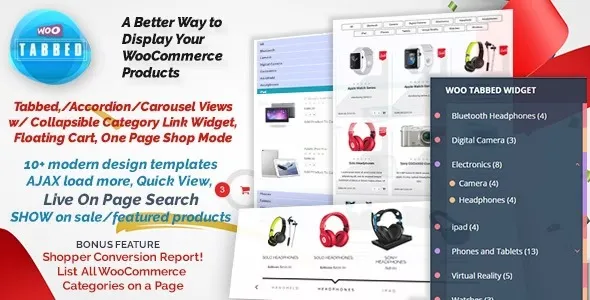
WooCommerce Tabbed Category Product Listing Pro turns category navigation into a focused, tabbed product display. Instead of sending users across multiple category archives, you can present selected categories as tabs and show the products inside each tab in the same block. It is a simple idea, but it changes how people explore a catalog.
If you are here with download intent, you are not alone. “WooCommerce Tabbed Category Product Listing Pro download” searches usually come from store owners who want a faster way to surface multiple categories on a single landing page without rebuilding their theme.
WooCommerce Tabbed Category Product Listing Pro enables you to showcase products from multiple categories in a tabbed layout that stays on one page. Visitors can switch categories instantly and keep their context, which is especially helpful on homepages, campaign pages, and curated collections.
In practice, it gives you a controlled “mini catalog” block. You pick categories, choose how products appear, and place the tabbed listing where it matters. The result is less navigation overhead and more product exposure per visit without turning the page into an endless scroll.
WooCommerce category archives are fine when your store structure is simple. But once you want “Featured categories” displayed together, you typically end up with one of these compromises.
You link to category pages and hope users explore. Or you manually build sections with shortcodes, blocks, or custom queries. Both approaches work, but they either add clicks or add maintenance.
A tabbed listing is a middle path. It keeps the page clean, reduces repeated headings, and makes category switching feel more like browsing a collection than navigating a site.
Tabbed category product displays are most useful when you are trying to guide choices rather than show everything.
Many stores want 3 to 8 categories visible above the fold. Tabs let you keep the layout compact while still giving each category a full product grid when clicked.
For promotions, you often need multiple categories in one place: “Gifts”, “Bundles”, “Under $50”, “Best sellers”. Tabs prevent the page from becoming a long stack of repeated product grids.
If buyers already know what they want, tabs can act like a fast filter. They can jump between categories and add items without bouncing between archives.
From an SEO and indexing perspective, tabbed product blocks should support your category architecture, not replace it. Category archives still matter for internal linking, breadcrumbs, and long-tail discovery.
Where WooCommerce Tabbed Category Product Listing Pro helps is on curated pages that serve users first, while still keeping the underlying category pages intact. You can build a focused page that earns links and engagement, then use it to funnel shoppers into deeper category browsing.
One caution: do not create dozens of near-identical tabbed pages that simply reshuffle the same products. That can dilute intent and create pages that feel duplicative. Use tabbed listings for pages with a clear purpose, such as “New arrivals across key categories” or “Top picks by room”.
If you are ready to proceed with a WooCommerce Tabbed Category Product Listing Pro download, keep the workflow clean so you avoid update issues and plugin conflicts.
Make sure WooCommerce is installed and active. Also confirm your WordPress version and PHP version meet your standard plugin requirements.
Complete your WooCommerce Tabbed Category Product Listing Pro download and keep the ZIP file intact. Do not unzip it unless the documentation specifically tells you to.
Go to your WordPress dashboard, open Plugins, then Add New, then Upload Plugin. Choose the ZIP file and install.
Activate the plugin. Then look for its settings panel or block/shortcode options, depending on how it integrates.
Create a staging or private page and insert a tabbed category listing. Verify category selection, product ordering, and responsive layout before placing it on a high-traffic page.
Check spacing, font sizes, and button styles on mobile. If you use caching or optimization plugins, clear cache and confirm tabs switch correctly for logged-out visitors.
You can approximate tabbed category displays with page builders, custom queries, or repeated product blocks. The trade-off is that you usually end up with more page weight, more manual updates, or a layout that breaks when categories change.
A dedicated solution like WooCommerce Tabbed Category Product Listing Pro is typically chosen when you want a consistent UI pattern that can be reused across pages. It is also helpful when non-technical editors need to manage category showcases without rebuilding layouts every time a campaign changes.
If your store only needs a single “Featured Products” grid, you may not need tabs at all. But if you are regularly presenting multiple categories in one place, purpose-built tabbing tends to be easier to maintain.
Tabs work best when choices are limited. If you add 15 categories, users stop exploring. Pick the categories that match the page intent and rotate them seasonally.
Tabbed blocks are not a replacement for clean category naming, proper product tagging, and meaningful archive pages. Keep your taxonomy strong, then use tabs as a curated surface.
Some tab layouts become cramped on small screens. Always check how tabs wrap, whether they become a scrollable row, and whether the active state is obvious.
No. Category pages still serve as primary indexable targets for category intent. Tabbed listings are best used as curated landing sections that improve browsing and support conversions while linking into your category structure.
That depends on how the plugin implements tab switching. Many tab systems switch content without a full reload, which improves browsing flow. After setup, test on mobile and with caching enabled to confirm behavior remains stable for logged-out users.
Typically, each tab pulls from the selected category using your store’s product data. You can influence results by adjusting product visibility, featured status, stock settings, and category assignments. For highly curated selections, consider using dedicated categories or tags that reflect the exact collection you want to show.
It can be, but you should keep each tab’s output tight. Limit the number of products shown per tab and avoid placing multiple heavy tabbed blocks on the same page. For very large catalogs, the best approach is to use tabs as an entry point, then send users to deeper category pages for full browsing.
Tabs often ship with default styling. If your theme uses strong button or link styles, you may see mismatches. Check whether the plugin provides style options. If not, light CSS adjustments in your child theme or customizer usually solve it.
Some overlap is normal if products belong to multiple categories. If repetition hurts the page experience, tighten category assignments, create more specific categories for the tabbed section, or reduce multi-category assignments for products that are meant to be unique to a collection.
If you are evaluating a WooCommerce Tabbed Category Product Listing Pro download, treat it like a merchandising tool. Start with one high-impact page, such as the homepage or a seasonal landing page, and measure engagement. Look at clicks on tabs, add-to-cart rate from the block, and whether users continue deeper into category pages.
Once you confirm the layout works for your audience, reuse the pattern sparingly. A few strong curated pages outperform a large set of similar tabbed pages. When you are ready, complete your WooCommerce Tabbed Category Product Listing Pro download, install it cleanly, and build a tab set that matches a single clear intent.
For store owners who want faster category exploration without rebuilding templates, WooCommerce Tabbed Category Product Listing Pro download decisions usually come down to maintenance. If you want a repeatable, editor-friendly way to present multiple categories in one compact area, it is a practical fit. If your catalog is small or your theme already includes a strong tabbed showcase, you may not need it.
When you proceed with your WooCommerce Tabbed Category Product Listing Pro download, test the tabbed block under real conditions. Check mobile, caching, and logged-out browsing. Those small checks are what keep a tabbed category showcase reliable on a busy store.
For Installation or Technical Related Queries check FAQ Page
Our Website also have older version of the plugins and theme. So you can test your website with compatible plugins or Rollback plugins in case of any bug or compatibility issues.
UNZIP the file downloaded from our website, the zip file might contain other files like Template, Docs etc. So make sure you upload correct file.
To Install Plugins:
To Install Themes:
Sometimes theme/plugin might ask you for license, just ignore. Because we have already activated the product with out legal key, which we have purchased for you.
When a New version appears and is available on our website you’ll find it in My Account “Downloads section”.
For Destination Already Exists error:
Make sure to Delete the version of theme/plugin that you have on your website before you upload our premium version, it might cause a conflict during installation and activation.
Or WordPress will say “destination already exists” when trying to upgrade using a zip file and will fail to upgrade the theme or plugin.
If you faced “destination already exists” error installing this Plugin will solve the issue – Easy Theme and Plugin Upgrades.
Our business hours are Monday to Saturday from 10:00 am to 8:00 pm, any request made outside these hours will be answered until next business day. Support and Updates can take 24 to 48 hours. Support provided is for product installation. Please be aware of possible time zone differences when waiting for our reply.
If you have any Queries, Feel Free to Contact Us:
Abuse Warning:
For more information please read FAQs & Terms of Use.
All directory items are created by third-party developers and distributed by ULTRA PLUGINS under the General Public License (GPL). ULTRA PLUGINS is not affiliated with, nor does it endorse, any product featured on this site.