Get upto 60% Discount

Get upto 60% Discount
Unlimited Access:
$10.00 Original price was: $10.00.$2.99Current price is: $2.99.

Tired of Restrictions?
Go Unlimited!
Join Our Membership to Download 8400+ Plugins & Themes

Most “image map” needs start simple and then immediately get messy. A floor plan needs hover labels. A world map needs region links. A product diagram needs tooltips, deep links, and mobile-friendly tap targets. Doing that with static images and manual hotspots often turns into fragile layouts and repeated redesign work.
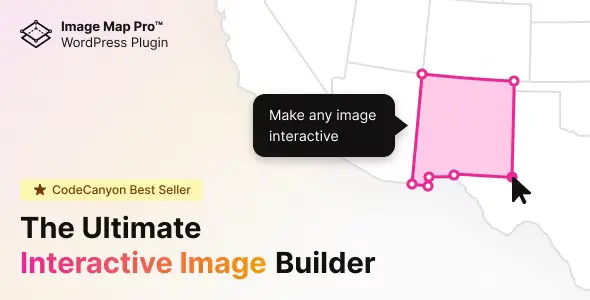
Image Map Pro for WordPress Interactive SVG Image Map Builder is built for that exact gap. It lets you place interactive hotspots on images or vector maps, attach actions like links and tooltips, and keep the whole thing editable inside WordPress. If you are here specifically for an Image Map Pro for WordPress Interactive SVG Image Map Builder download, it helps to understand what you are installing and how to avoid common setup pitfalls so the map stays maintainable.
The core value is control over interactive visuals without hand-coding SVG or rebuilding layouts every time content changes. You can create an interactive map, diagram, or photo overlay and treat it like a reusable content block. That means marketing can update labels, support can adjust instructions, and editors can swap links without asking a developer to redraw hotspots.
In practice, the plugin is most useful when the image is a navigation surface. Instead of a long list of links, users click the thing they recognize. This works well for store locators, campus maps, seating charts, anatomy diagrams, equipment schematics, and “choose a region” landing pages.
HTML image maps and scattered absolute-position elements can work for a quick prototype. The problems show up later. Responsive behavior drifts, hotspots stop matching the underlying image, and editors avoid touching it because one small change can misalign everything.
SVG-based interaction helps because vectors scale cleanly. But writing SVG paths by hand is not a realistic workflow for most WordPress sites. Image Map Pro for WordPress Interactive SVG Image Map Builder sits in the middle. It gives you a visual builder while still producing maps that can scale with modern layouts.
Landing pages and internal linking. Interactive maps are often used to route users into deeper content. A country map can link to regional category pages. A product illustration can link to compatible parts. This tends to improve navigation clarity and reduces “where do I click next?” friction.
Documentation and training content. Step-by-step diagrams work better when each component can show a tooltip or open a detail panel. Editors can keep the image stable while updating the text attached to each hotspot.
Multi-author sites. When multiple people edit pages, the biggest win is repeatability. You build the map once, then reuse it across posts or templates. That reduces duplicate work and prevents “almost the same” maps from drifting out of sync.
If your goal is an Image Map Pro for WordPress Interactive SVG Image Map Builder download and a clean install, follow a predictable workflow. It prevents most activation issues and avoids broken assets after updates.
Update WordPress core and your theme first. If you are running aggressive caching or optimization, note it so you can temporarily disable minification during initial testing.
Save the ZIP file locally and keep it intact. Do not unzip and rezip unless you know the plugin folder structure is preserved. Many “missing stylesheet” errors come from uploading the wrong ZIP level.
Go to Plugins → Add New → Upload Plugin. Choose the ZIP, upload, then click Install. After installation finishes, activate the plugin.
Create a test page and insert a simple map with one hotspot and one tooltip. View it on desktop and mobile. If tooltips or clicks do not work, temporarily disable script minification and retest.
Decide early whether maps will be inserted via shortcodes, blocks, or templates. Consistency matters when you later update maps across dozens of pages.
When you revisit for another Image Map Pro for WordPress Interactive SVG Image Map Builder download for a staging site, repeat the same steps and validate behavior before pushing to production.
WordPress can embed images easily, but it does not provide a native, editor-friendly way to build complex clickable regions with tooltips and structured interactions. You can approximate it with buttons layered over images, but alignment becomes a long-term maintenance cost, especially across breakpoints.
Compared to custom-coded SVG, a visual builder is faster for most teams. The trade-off is that you work within the plugin’s interaction model. If you need entirely bespoke SVG scripting or data-driven rendering from external sources, custom development may still win. For most content-driven sites, the time saved on edits and iterations is the deciding factor.
Interactive maps can be lightweight, but they can also become heavy if you treat each map like a mini-app. A few habits keep performance stable.
Dozens of tiny hotspots look impressive but often create a poor mobile experience. Group items where possible and link to a filtered page or accordion section instead of forcing every detail into one canvas.
If you import a very large image, the page pays the cost on every load. Resize images to the maximum size you actually display. For SVG maps, simplify paths when possible so scaling remains smooth.
Some optimization plugins combine scripts in ways that break click handlers or tooltip positioning. Validate after enabling minification, not before. This is especially important when you install from an Image Map Pro for WordPress Interactive SVG Image Map Builder download and immediately place maps on high-traffic pages.
On mobile, small targets lead to misclicks. Make hotspots larger than you think, and use padding. If precision matters, add zoom or provide a text-based fallback list below the map.
Maps often become a navigation layer. If you hardcode URLs and later change slugs, you create silent dead ends. Consider linking to stable endpoints or double-check links after major site restructures.
A map with only hover tooltips can be unusable for keyboard users and unreliable on touch devices. Use clear labels, ensure tooltips can be triggered on click, and include a text alternative when the map is essential navigation.
If your goal is simply to show one image with a single link, a standard button below the image is usually better. Similarly, if your “map” is really a list of locations, a searchable directory page can outperform an interactive graphic for both usability and SEO.
Image Map Pro for WordPress Interactive SVG Image Map Builder earns its place when the visual itself is the interface and when editors need to maintain it over time. If you are only experimenting, start with one map and validate engagement before rolling it site-wide. If you proceed, keep your Image Map Pro for WordPress Interactive SVG Image Map Builder download package archived so you can reproduce the setup in staging during audits.
Yes. Many sites use SVG for regions because it scales cleanly, and use high-quality images for diagrams or photos. The key is testing responsiveness so hotspots remain aligned across breakpoints.
They should, but you need to design for tap. Use click-triggered tooltips or actions, increase hotspot size, and avoid relying on hover-only interactions for critical information.
Create a single canonical map and reuse it where possible. If you must fork a map, name versions clearly and document why. This prevents editors from updating the wrong copy later.
It can if scripts are deferred or combined aggressively. After installing from an Image Map Pro for WordPress Interactive SVG Image Map Builder download, test with your optimization settings enabled and exclude the plugin scripts only if needed.
In most setups, hotspots that link to URLs can be tracked like normal link clicks. If you rely on popups or custom actions, you may need event tracking configuration depending on your analytics tool.
Update on staging first, open a few representative pages, and test tooltips, links, and responsive behavior. Keep a backup before updating so you can roll back if a conflict appears.
If you are ready for an Image Map Pro for WordPress Interactive SVG Image Map Builder download, plan the first map like a content asset, not a one-off widget. Decide what each hotspot should do, keep labels consistent, and add a text alternative for accessibility and clarity.
Once installed, build one map that represents your hardest case (mobile, many regions, real links). If that works smoothly, scaling to additional pages is straightforward. If you need to repeat the setup elsewhere, keep your Image Map Pro for WordPress Interactive SVG Image Map Builder download process consistent across staging and production so behavior stays predictable.
For Installation or Technical Related Queries check FAQ Page
Our Website also have older version of the plugins and theme. So you can test your website with compatible plugins or Rollback plugins in case of any bug or compatibility issues.
UNZIP the file downloaded from our website, the zip file might contain other files like Template, Docs etc. So make sure you upload correct file.
To Install Plugins:
To Install Themes:
Sometimes theme/plugin might ask you for license, just ignore. Because we have already activated the product with out legal key, which we have purchased for you.
When a New version appears and is available on our website you’ll find it in My Account “Downloads section”.
For Destination Already Exists error:
Make sure to Delete the version of theme/plugin that you have on your website before you upload our premium version, it might cause a conflict during installation and activation.
Or WordPress will say “destination already exists” when trying to upgrade using a zip file and will fail to upgrade the theme or plugin.
If you faced “destination already exists” error installing this Plugin will solve the issue – Easy Theme and Plugin Upgrades.
Our business hours are Monday to Saturday from 10:00 am to 8:00 pm, any request made outside these hours will be answered until next business day. Support and Updates can take 24 to 48 hours. Support provided is for product installation. Please be aware of possible time zone differences when waiting for our reply.
If you have any Queries, Feel Free to Contact Us:
Abuse Warning:
For more information please read FAQs & Terms of Use.