Get upto 60% Discount

Get upto 60% Discount
Unlimited Access:
$10.00 Original price was: $10.00.$2.99Current price is: $2.99.

Tired of Restrictions?
Go Unlimited!
Join Our Membership to Download 8400+ Plugins & Themes

Elementor makes it easy to build pages quickly, but it is surprisingly clumsy when the page needs to teach code. A plain Text Editor widget flattens formatting. A screenshot of code looks sharp but is not selectable, not accessible, and not friendly for search.
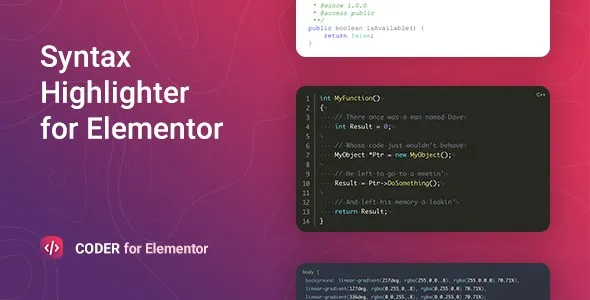
Coder – Syntax Highlighter for Elementor is built for the common case where you want real code blocks inside Elementor layouts with readable syntax highlighting and predictable formatting. If you are looking for a Coder – Syntax Highlighter for Elementor download because you publish tutorials, changelogs, API examples, or developer documentation, this plugin focuses on the parts that usually break first: consistency, readability, and editor workflow.
The core value is simple: it lets you publish code inside Elementor pages in a way that stays readable across themes, devices, and content updates.
Instead of fighting spacing, fonts, and inline styles every time you paste a snippet, you can standardize how code appears across your site. That matters when you have multiple authors, multiple landing pages, or a documentation area where visitors expect copyable code with clear syntax cues.
In practice, you use it when you want code to feel like a first-class content element, not a fragile block of preformatted text that changes when you switch themes or update typography settings.
Most Elementor sites start with a workaround: paste code into a text widget, wrap it in <pre><code>, and hope the theme does not override it. It usually looks “fine” until you view it on mobile, switch fonts, or add a dark section background.
Another common workaround is embedding code from third-party services. That can add external requests, inconsistent styling, and sometimes mixed content issues depending on how the embed is served.
Coder – Syntax Highlighter for Elementor is aimed at removing those workarounds so your code blocks behave like any other Elementor element you can style and reuse.
If you publish tutorials, you will likely reuse the same patterns: install commands, configuration files, short functions, and longer examples. The plugin helps you keep those patterns consistent so readers can scan quickly and copy safely.
For documentation-style pages, consistency matters even more. The same language should look the same across pages. Updates should not require reformatting every block by hand. If you are maintaining a knowledge base, a clean code widget inside Elementor reduces the “tiny edits that take forever” problem.
It also helps when content is written by non-developers. Editors can paste code into a dedicated widget instead of entering HTML and accidentally breaking tags, spacing, or escaping.
Elementor’s native widgets are not designed for syntax highlighting. You can get monospace text, but you do not get language-aware styling or a reliable code-block layout without extra CSS and careful formatting.
Shortcode-based syntax highlighters can work, but they often feel disconnected inside the Elementor editor. You end up switching between visual editing and shortcode parameters, and the preview is not always representative of the final output.
Coder – Syntax Highlighter for Elementor is most useful when you want code blocks to be managed like other Elementor elements. That means faster page building, fewer formatting surprises, and less custom CSS to maintain. If your goal is to reduce content maintenance overhead, a Coder – Syntax Highlighter for Elementor download makes sense earlier than most people expect.
When code is copied from a rich-text source (docs, email, some page builders), it can introduce curly quotes or invisible characters. Those characters can break code examples for readers. A dedicated code widget reduces the risk, but you should still paste from a plain-text source when possible.
Many themes apply global typography rules to <pre> and <code> elements. If your code suddenly inherits body font size or line height, it becomes hard to read. With a plugin designed for code blocks, you are less dependent on theme defaults, but it is still worth checking one page in a private window after theme updates.
Code highlighting that looks great on a white background can become unreadable on dark hero sections. Test at least one code block inside a dark container if your design uses alternating backgrounds. Consistent styling is the goal, but contrast is the requirement.
If you are ready to proceed with a Coder – Syntax Highlighter for Elementor download, use a clean installation flow so you can troubleshoot quickly if something conflicts with your theme or caching setup.
1) Back up first. If this is a production site, take a quick backup or create a staging copy. Code formatting plugins are usually low risk, but it is still best practice.
2) Download the plugin file. Save the ZIP from the official source you are using for your Coder – Syntax Highlighter for Elementor download. Keep the file name unchanged to avoid confusion later.
3) Upload in WordPress. Go to Plugins > Add New > Upload Plugin. Choose the ZIP and click Install Now.
4) Activate. After installation completes, click Activate. If you see an error, note the message. It often points to a PHP version mismatch or a corrupted ZIP.
5) Confirm Elementor is active. This plugin is intended to work inside Elementor. Make sure Elementor is installed and activated, then open any page in the Elementor editor.
6) Add a code element and test. Insert the syntax highlighter widget, paste a short snippet, and preview on desktop and mobile. Check line breaks, spacing, and whether the code is selectable and easy to copy.
7) Clear caches. If you use a caching plugin or server-side caching, clear cache after activation so you are seeing the real front-end output.
Code highlighting can be lightweight or surprisingly heavy depending on how it is implemented. The practical approach is to treat code blocks like other “repeatable components” and avoid unnecessary duplication.
If you publish long tutorials with many snippets, keep an eye on how many highlighted blocks are on a single page. A few blocks rarely matter. Dozens can add up, especially if other widgets are also loading scripts.
For larger documentation hubs, consider splitting content into smaller pages. It improves crawl efficiency, makes pages easier to navigate, and reduces the chance that a single tutorial becomes slow on mobile.
If your site only includes an occasional one-line command, a simple monospace style may be enough. You can often get away with a small CSS rule and a basic <code> tag.
Also, if your content is primarily blog posts written in the block editor and not in Elementor, a Gutenberg-focused syntax highlighter may fit better. Coder – Syntax Highlighter for Elementor is a better match when Elementor is your main publishing environment and you want code to be part of the layout system.
In most Elementor setups, widgets work anywhere Elementor can render content, including templates. The key is to test one template and one regular page, since some themes apply different typography rules in template areas.
Search engines can index code text like any other on-page content as long as it is rendered as text and not an image. The bigger SEO benefit is user behavior: readable, copyable code reduces pogo-sticking and improves engagement on tutorial pages.
This is often caused by theme CSS or caching differences between preview and front-end. Clear caches, then inspect whether your theme applies styles to <pre> or <code>. If it does, you may need to adjust theme settings or custom CSS to avoid overrides.
Yes, these formats are common in tutorials. The best results come from selecting the closest language mode supported by the widget and keeping indentation intact. Always paste in a way that preserves whitespace.
Update on staging first if your documentation pages are business-critical. After updating, spot-check one page with a short snippet and one with a longer snippet, then clear caches. This catches most formatting regressions quickly.
Long lines can overflow on small screens. The usual fix is enabling horizontal scrolling for code blocks rather than forcing line breaks that change meaning. If your design hides overflow, adjust container settings so users can scroll within the code area.
If you are preparing for a Coder – Syntax Highlighter for Elementor download, decide upfront how you want code to look across the site. Pick a consistent font size, line height, and background style that works on both light and dark sections.
Then publish one test page with three snippet types: a short command, a multi-line function, and a config file. This is the fastest way to confirm the widget behaves well in your real layout system.
Once that baseline is set, the plugin becomes less about “highlighting” and more about keeping your tutorials maintainable. If that is the outcome you want, a Coder – Syntax Highlighter for Elementor download is a practical step, not a cosmetic one.
For Installation or Technical Related Queries check FAQ Page
Our Website also have older version of the plugins and theme. So you can test your website with compatible plugins or Rollback plugins in case of any bug or compatibility issues.
UNZIP the file downloaded from our website, the zip file might contain other files like Template, Docs etc. So make sure you upload correct file.
To Install Plugins:
To Install Themes:
Sometimes theme/plugin might ask you for license, just ignore. Because we have already activated the product with out legal key, which we have purchased for you.
When a New version appears and is available on our website you’ll find it in My Account “Downloads section”.
For Destination Already Exists error:
Make sure to Delete the version of theme/plugin that you have on your website before you upload our premium version, it might cause a conflict during installation and activation.
Or WordPress will say “destination already exists” when trying to upgrade using a zip file and will fail to upgrade the theme or plugin.
If you faced “destination already exists” error installing this Plugin will solve the issue – Easy Theme and Plugin Upgrades.
Our business hours are Monday to Saturday from 10:00 am to 8:00 pm, any request made outside these hours will be answered until next business day. Support and Updates can take 24 to 48 hours. Support provided is for product installation. Please be aware of possible time zone differences when waiting for our reply.
If you have any Queries, Feel Free to Contact Us:
Abuse Warning:
For more information please read FAQs & Terms of Use.